Create a link
In order to create a link between two items, start by selecting one of the items, in the item menu click on one of the handles, hold the click and slide your cursor toward the second item.
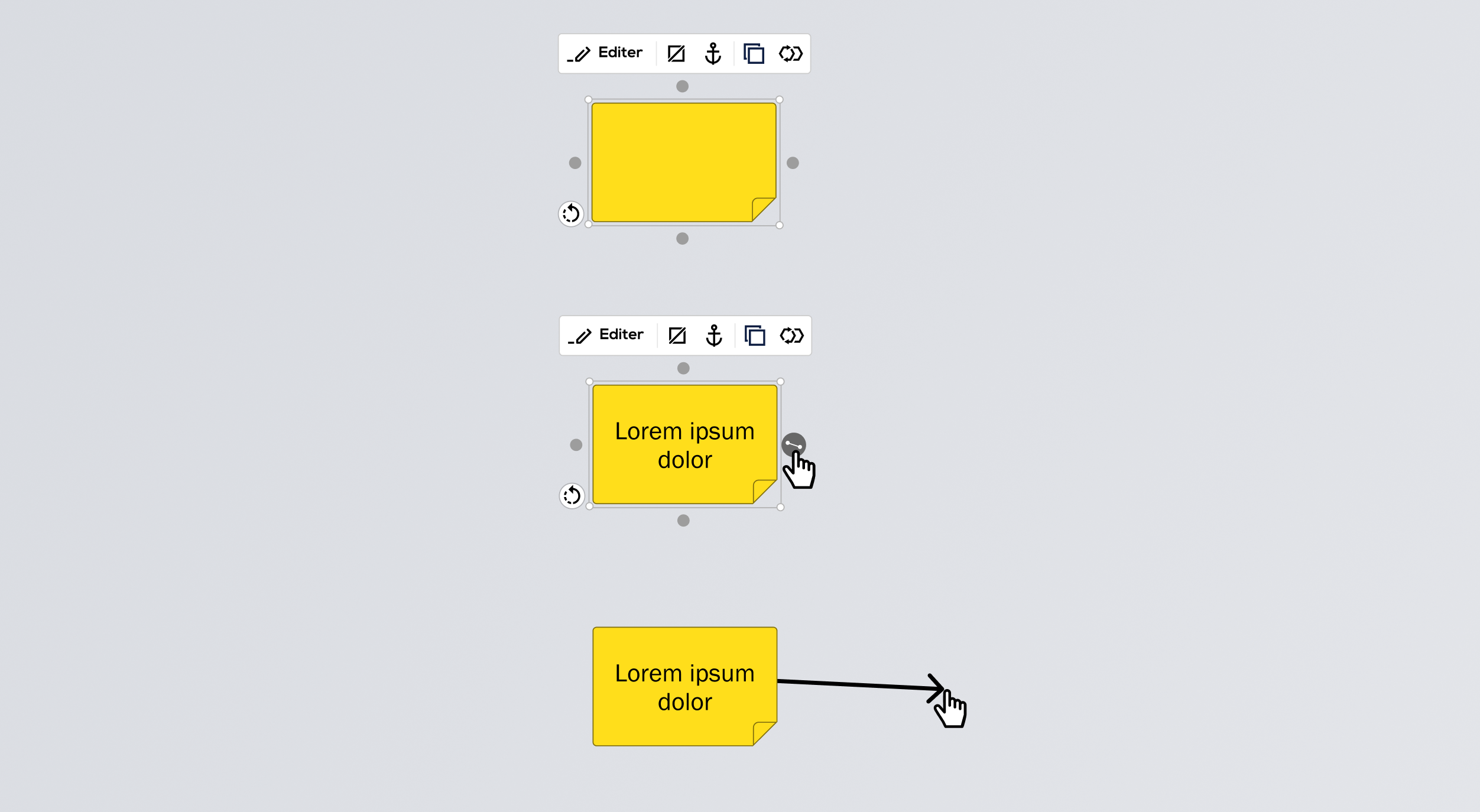
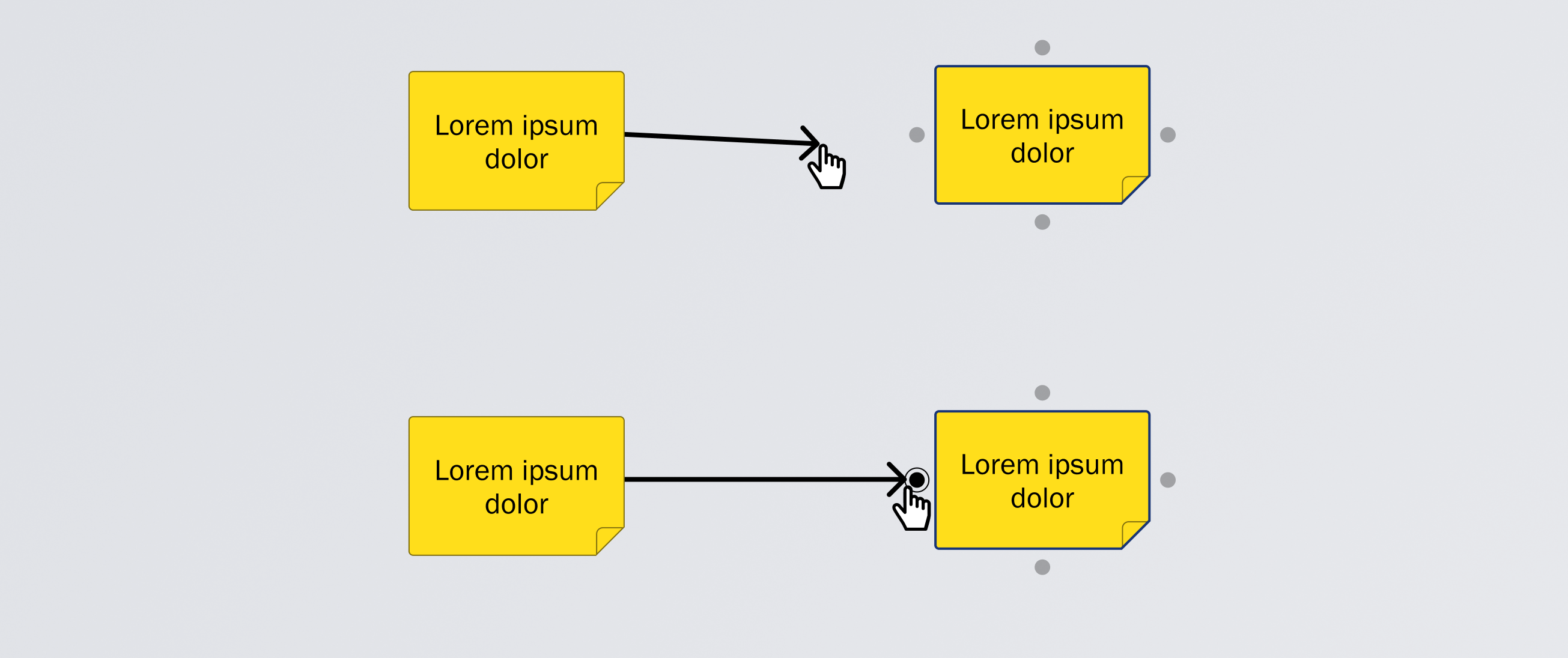
When your cursor is near the second item, the anchor points are displayed, place you cursor hover the selected anchor point and release the click.
Another option is to place the link directly above the object, the hook of the link will then automatically adjust to the direction of the link.
Edit link
Click on the link, its editing window is displayed :
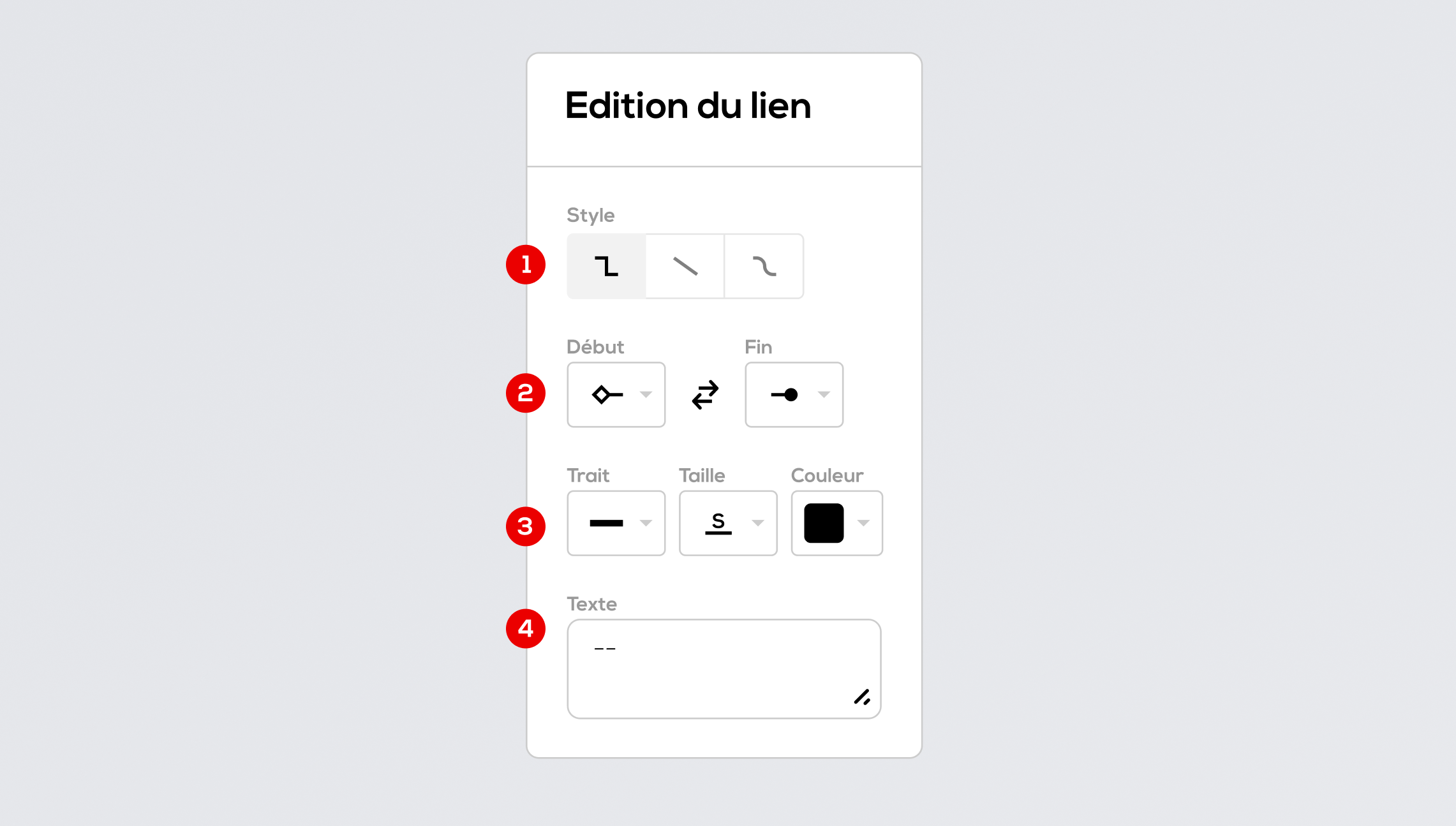
- Choose the drawing style: orthogonal or straight.
- Choose the appearance of the link ends.
- Choose the stroke style (full, dashed, points or mixt), the stroke thickness and color.
- Add, if needed a label to the link.
Click anywhere on the background to dismiss the popup.
Set the base link settings for the document or the project
From a document or from the home page, clic on the "settings" icon in the toolbar and opens the "Base link" section.
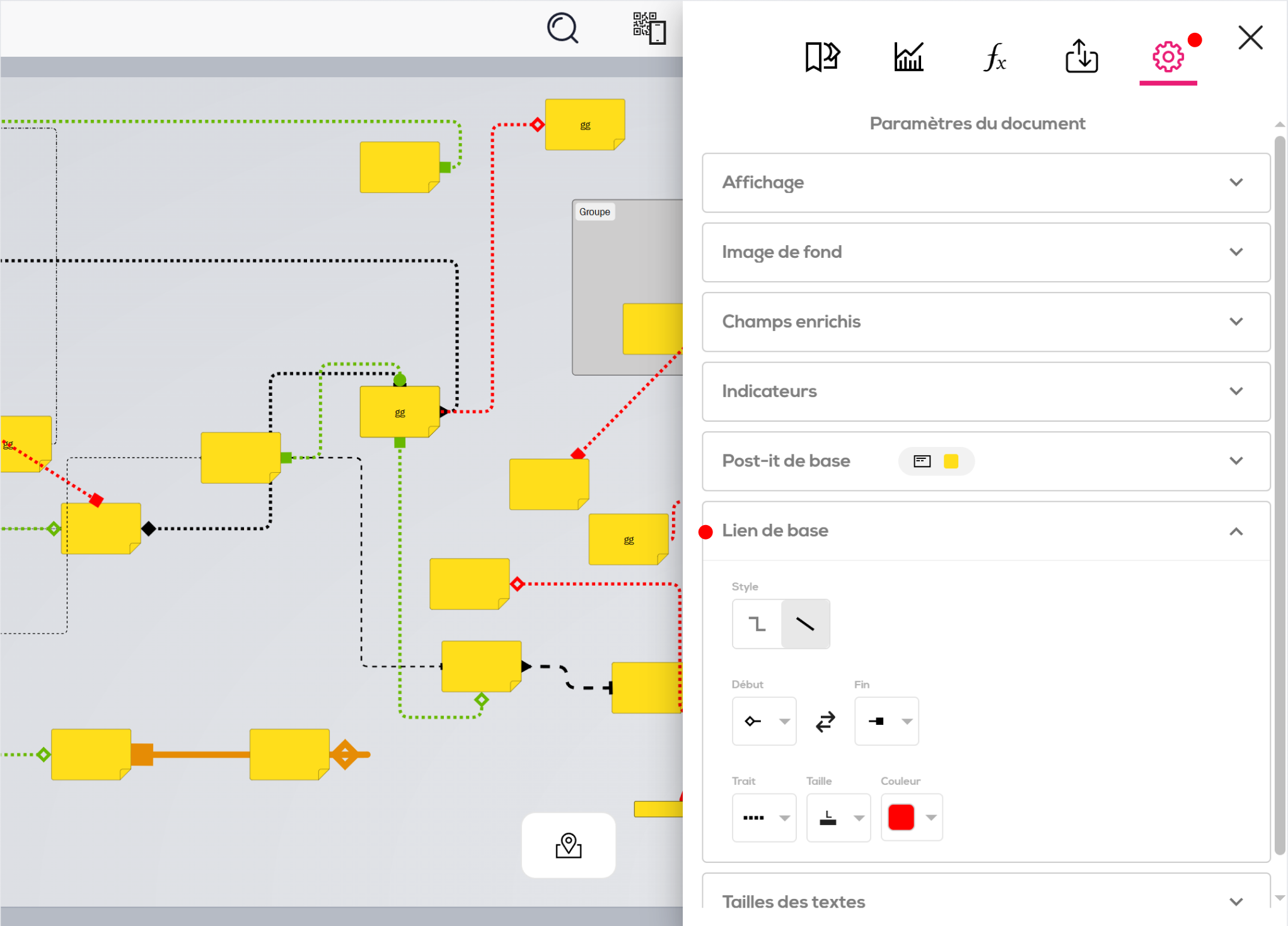
The chosen settings will be applied to all new links in the document or in the project.
