What are document filters?
A document filter allows you to count, within your document, the objects that meet the specified criteria.
Each filter is defined by one or more criteria (color, shape, enriched fields… see full list below), combined together using logical and/or operators. This allows you to precisely target the information you want to analyze in your document.
You can then highlight or hide the results of each filter directly in your document.
Create a filter in a document
Open your document and click on the "Statistics" icon at the top right of your screen.
Click on "New" and select "Filter" (to learn more about histograms: Histograms).
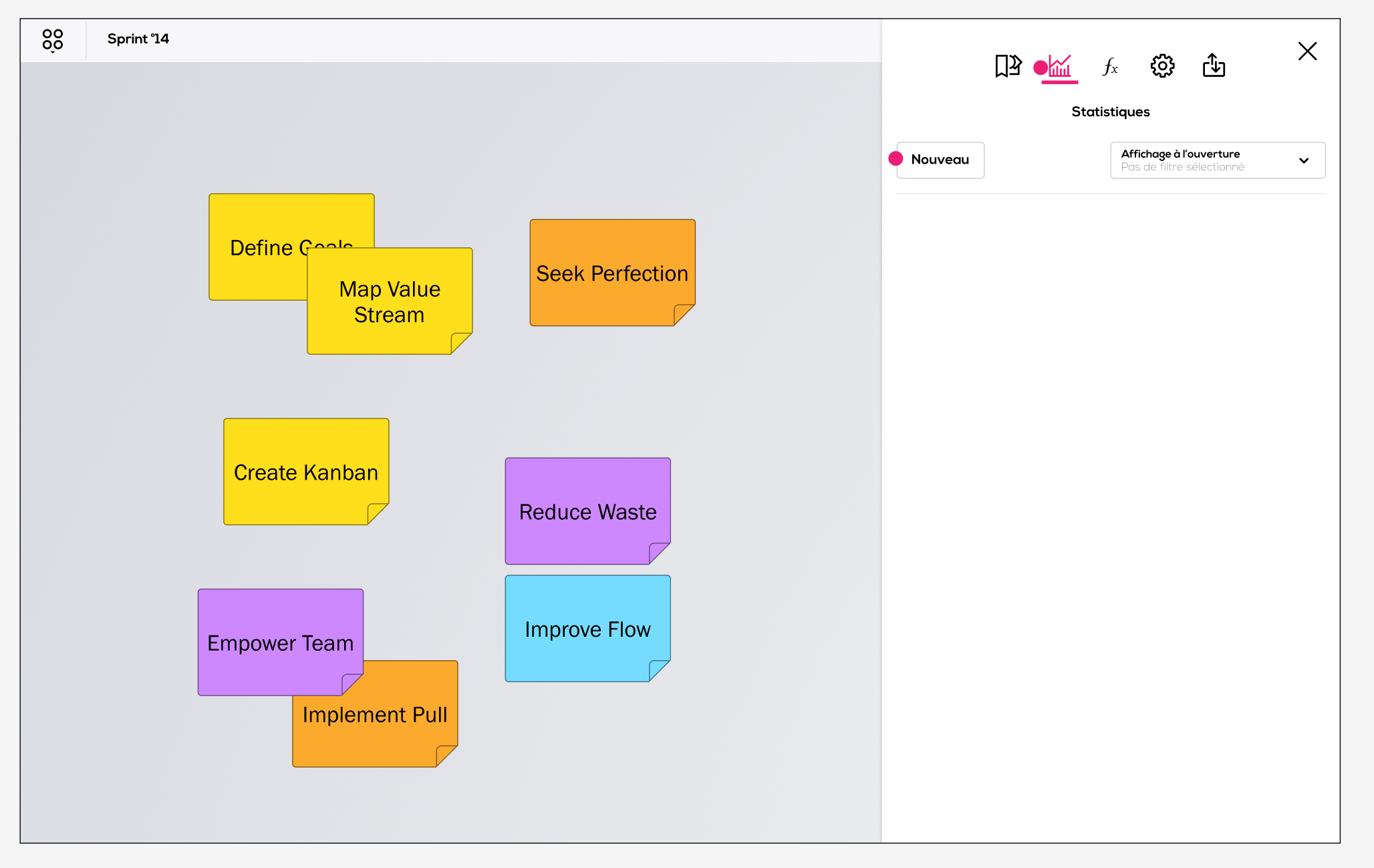
The filter configuration window opens:
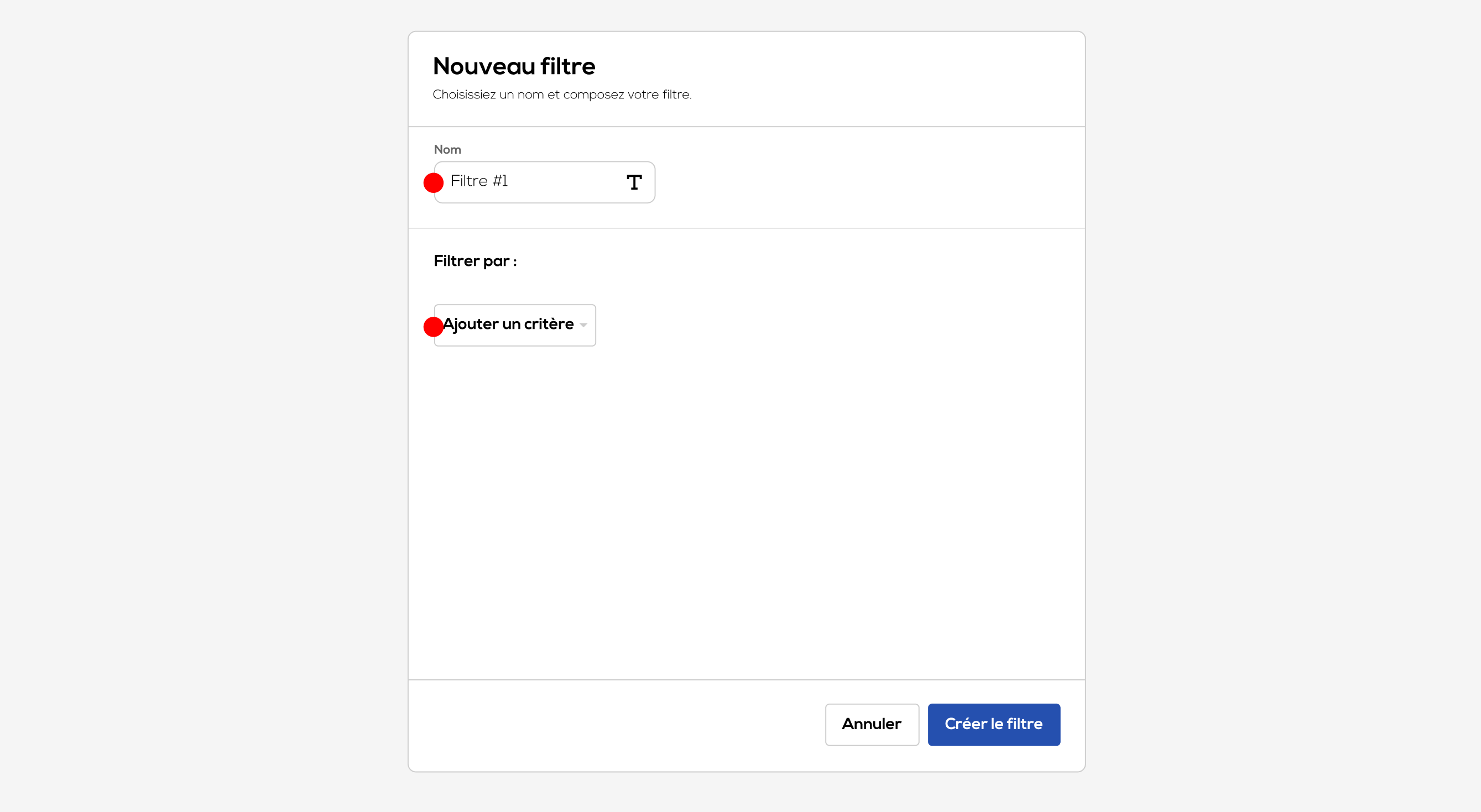
Choose a name for your filter, then click on "Add a criteria".
The list of available criteria is displayed:
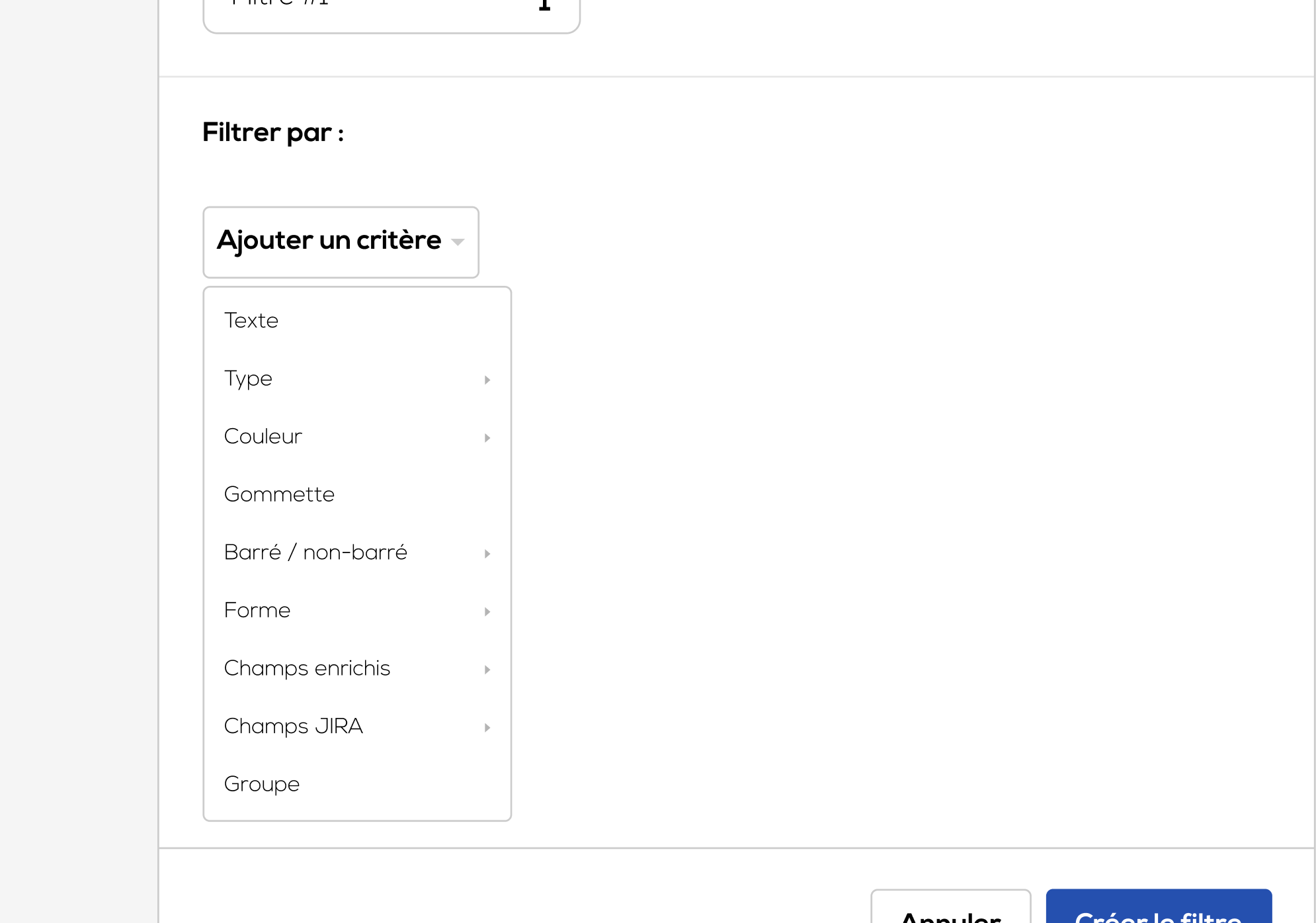
List of available criteria
-
Text :
Search for one or more words in the main text of the items.
-
Type :
Filter items by type: Post-its or JIRA cards.
-
Color :
Filter items based on their color.
-
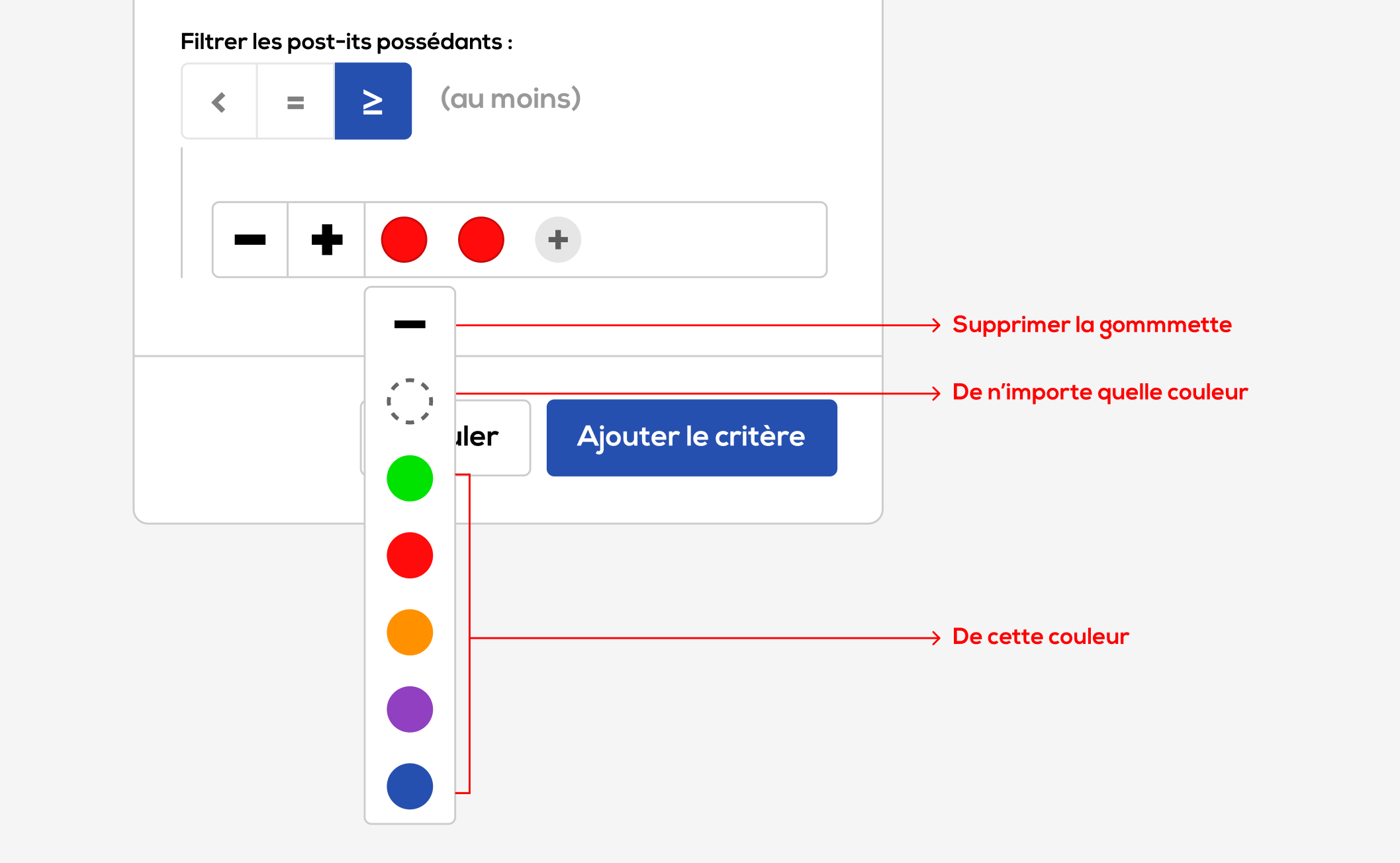
Sticker:
Filter items based on the stickers assigned to them.
Click on "Sticker" in the dropdown menu; the configuration window opens.
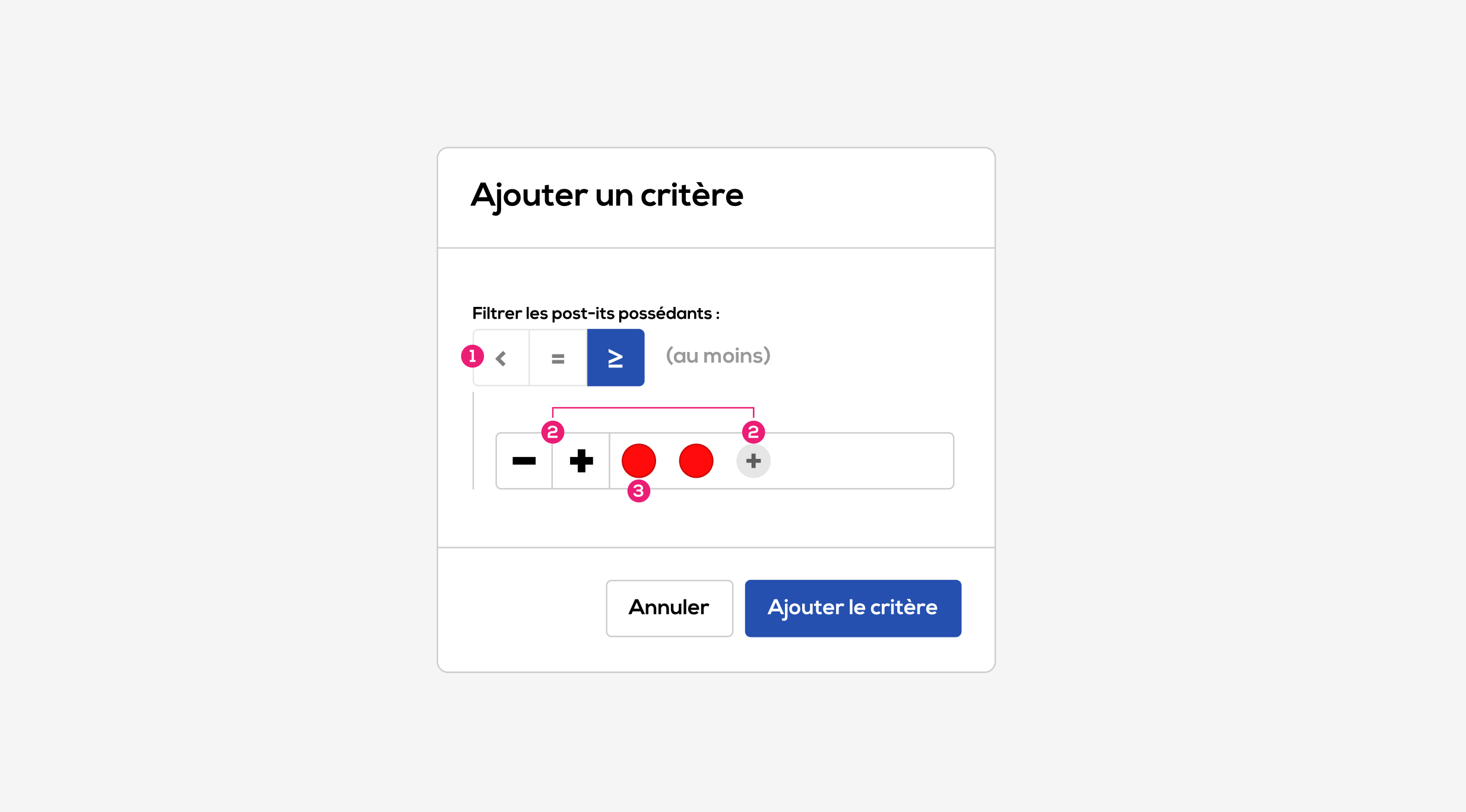
1 . Select an operator: less than, exactly, at least.
2 . Build the target sticker set by adding or removing stickers.
3 . Click on a sticker to change its color.
-
Crossed / Not Crossed
FIlters items that are crossed or not.
-
Shape :
FIlters post-its items based on their shape.
-
Extended field :
Filter post-its based on the content of an enriched field.
Click on "Extended fields" in the dropdown menu, the list of the fields of the document opens.
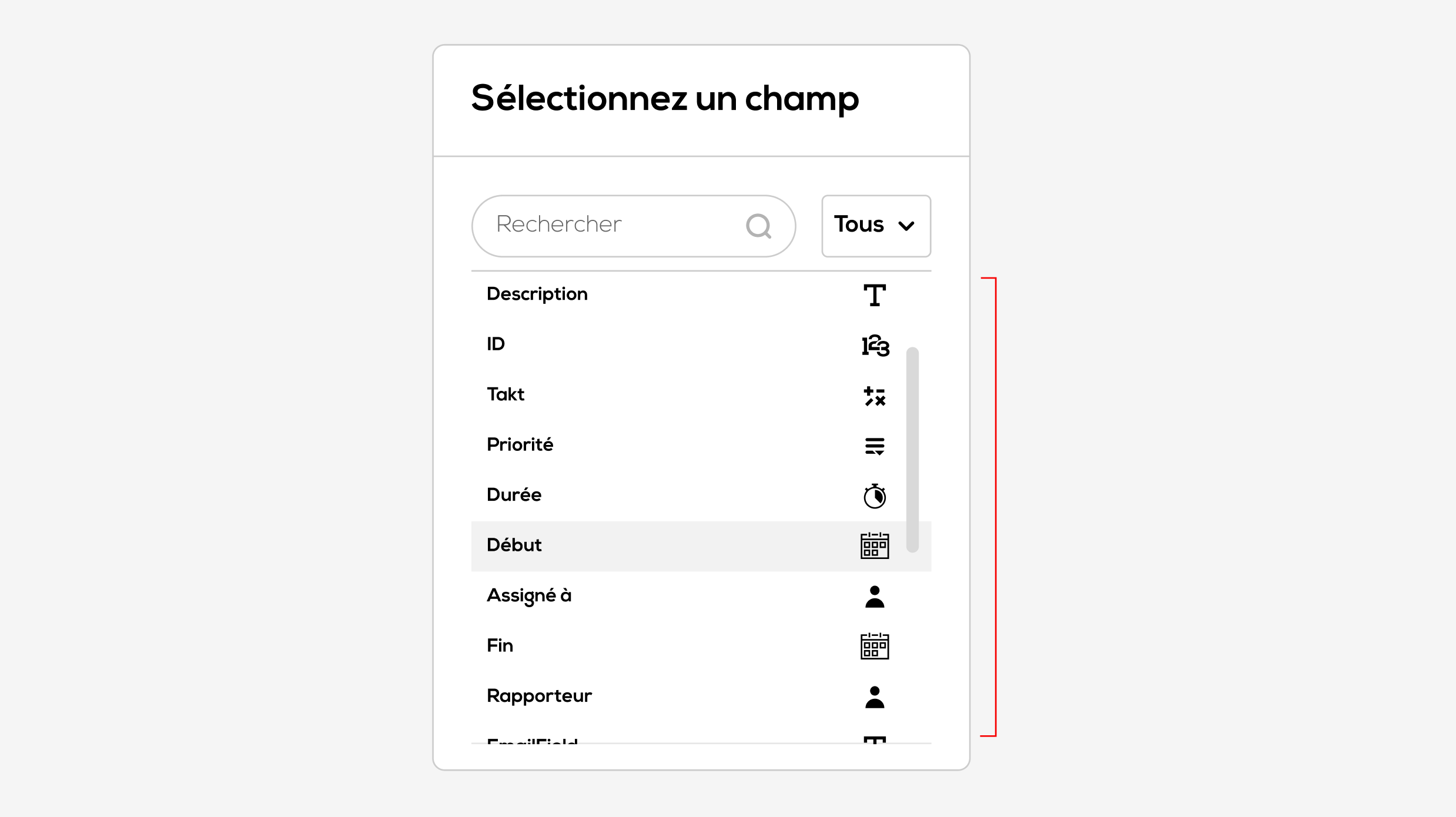
Select the target field from the list.
Filter Post-its whose target field result contains the entered text.
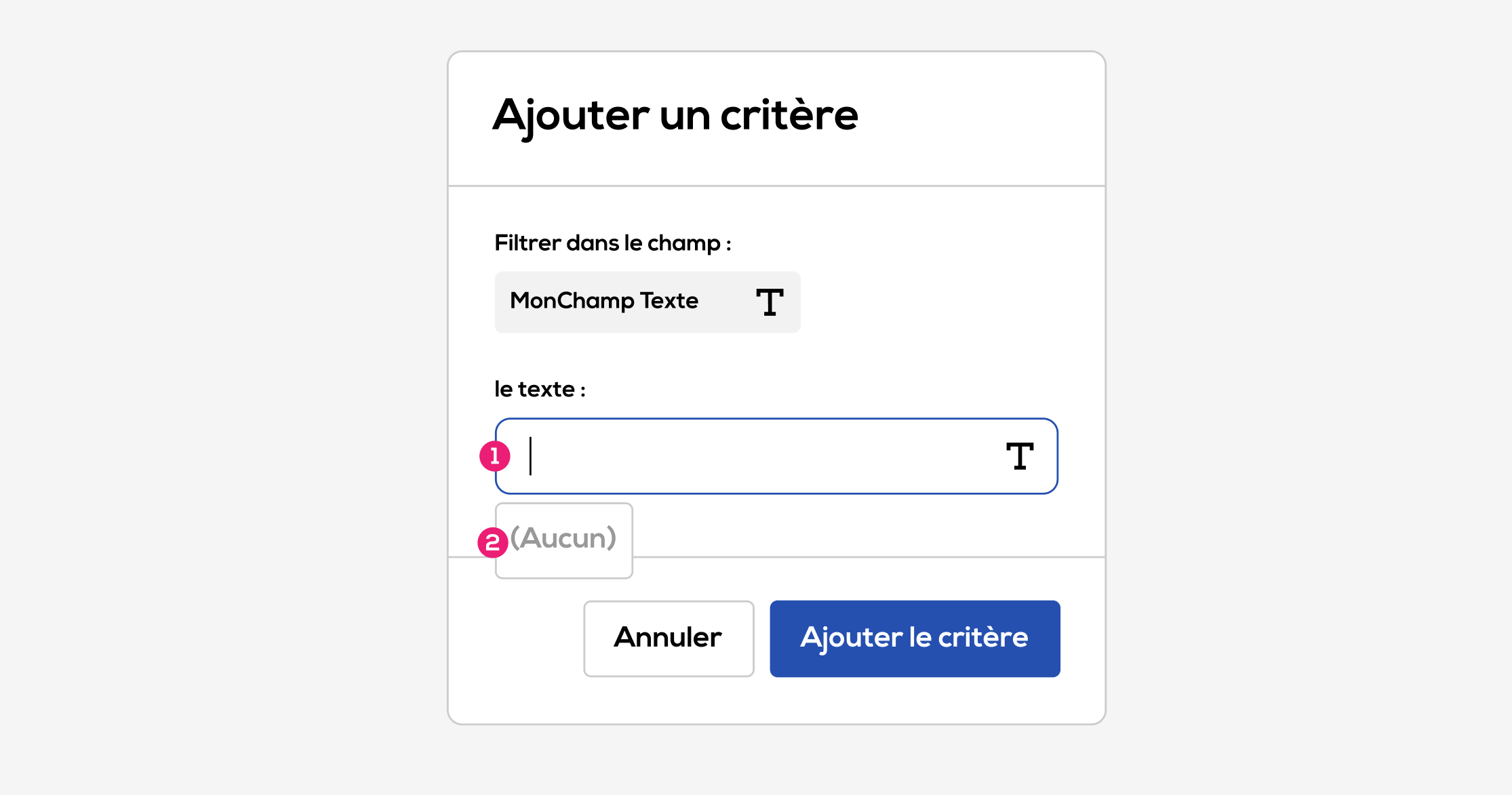
1 . Enter the text to search for.
2 . Select “None” to filter post-its with an empty field.
Filter post-its whose field value meet the chosen condition (operator & target value).
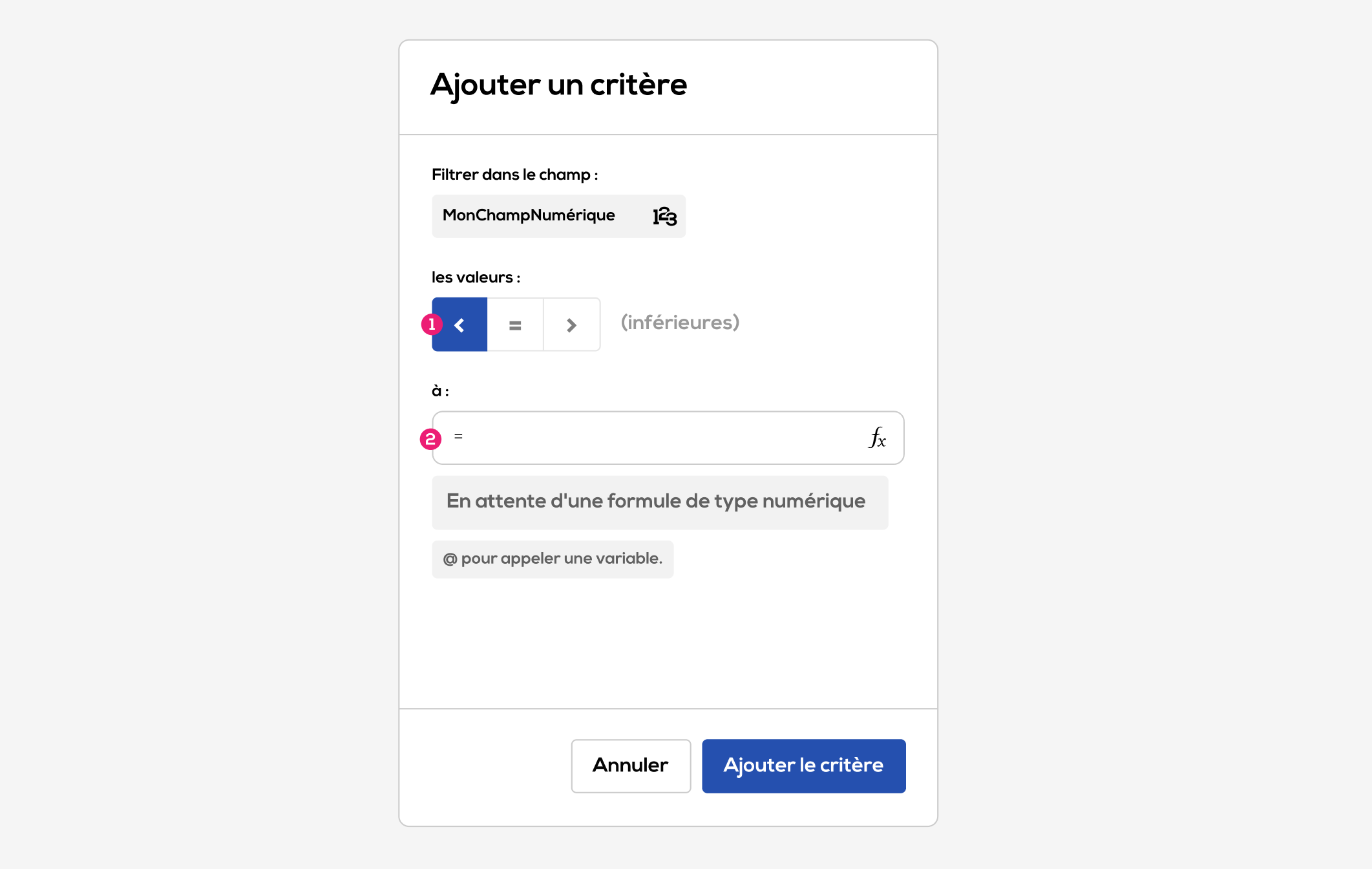
1 . Choose an operator: less than, equal to, greater than.
2 . Enter a target value. This value can be numeric or can reference document variables (extended fields, document formulas). Press the @ key to access the variables. The target value must be numeric so it can be compared to the field’s result.
For more information about variables : Document formulas, Calculation field, Detail of operations on variables.
Select “None” from the list of variables to filter post-its with an empty field.
Filter Post-its whose value in the selected field meet the chosen condition (operator & target value).
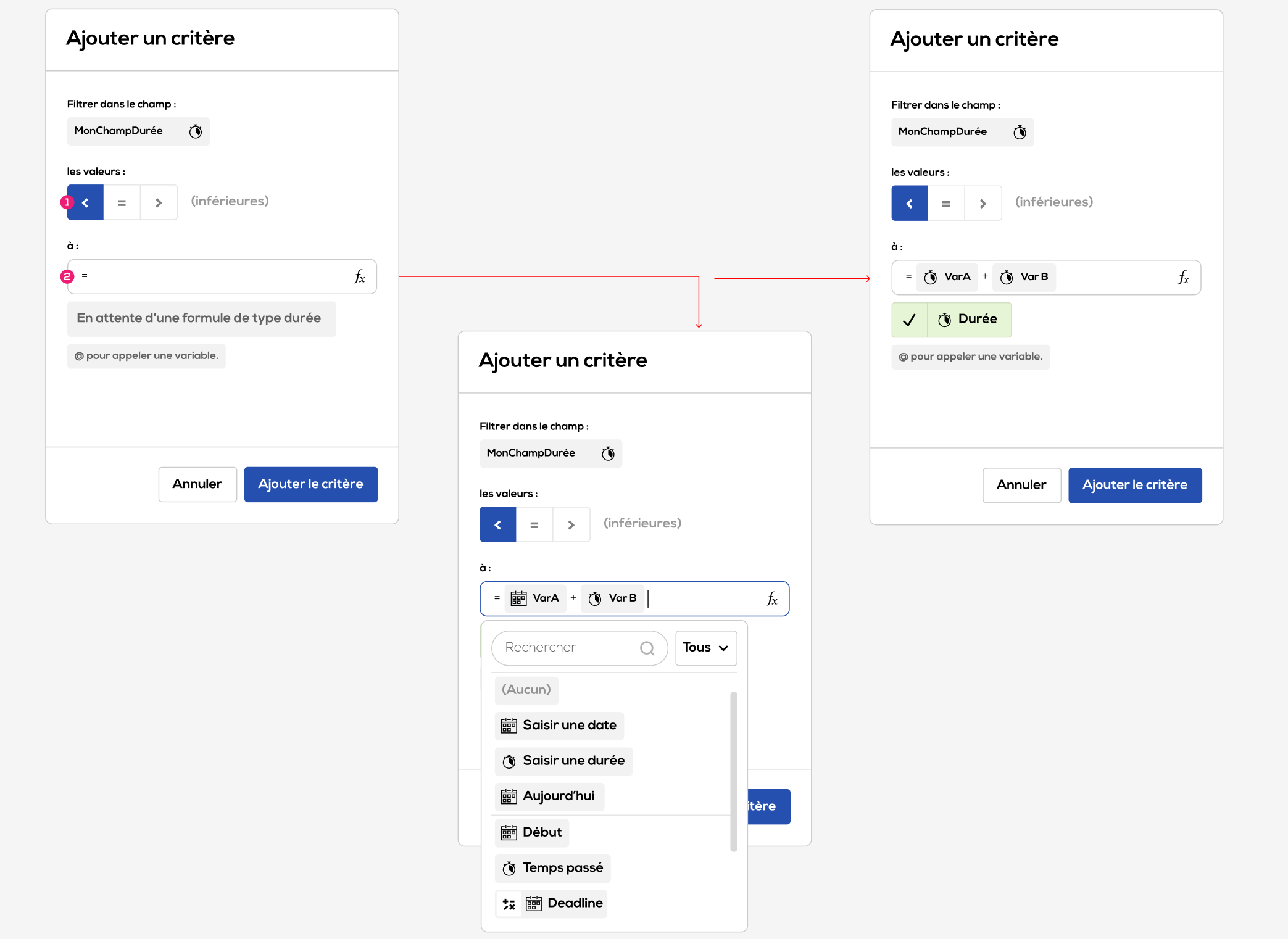
1 . Choose an operator: less than, equal to, greater than.
2 . Enter a target value. The expression may use numeric values and/or reference document variables (enriched fields, document formulas). Press the @ key to access the variables. The target value must be a duration type so it can be compared to the field’s result.
For more information about variables : Document formulas, Calculation field, Detail of operations on variables.
Select “None” from the list of variables to filter Post-its with an empty field.
Filter Post-its whose value in the selected field meet the conditions (see below).
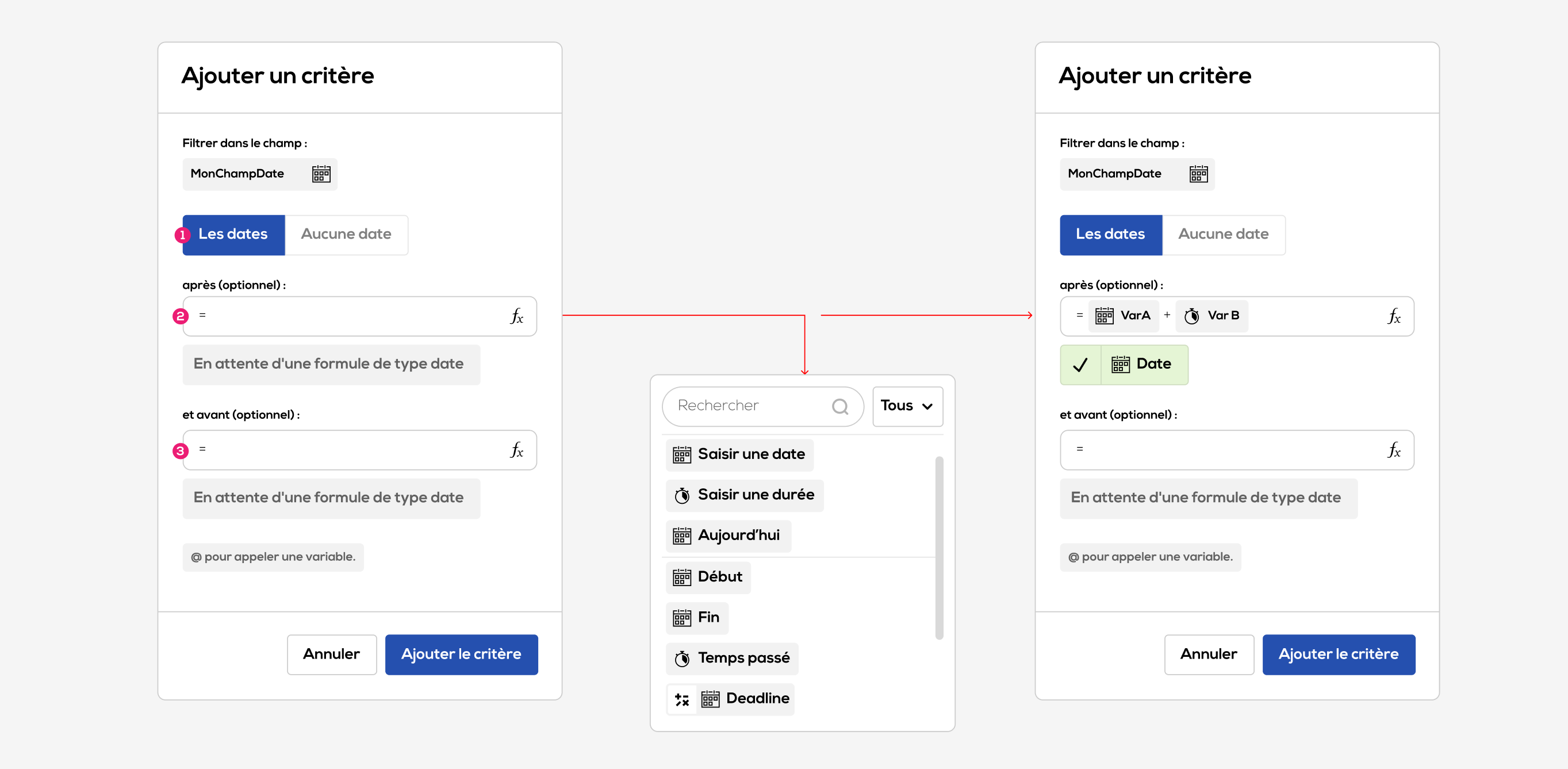
1 . Choose “No date” to filter Post-its whose field is not filled in.
2 . Lower bound: the field value must be after the target date. The expression can use numeric values and reference document variables (extended fields, document formulas). Press the @ key to access the variables. The target value must be of date type so it can be compared to the field’s result.
If the field is left empty, the condition will be ignored.
For more information about variables : Document formulas, Calculation field, Detail of operations on variables.
3 . Upper bound : the field value must be before the target date (works the same way as the lower bound).
- For a member field :
Filter post-its whose selected field result matches the target value.
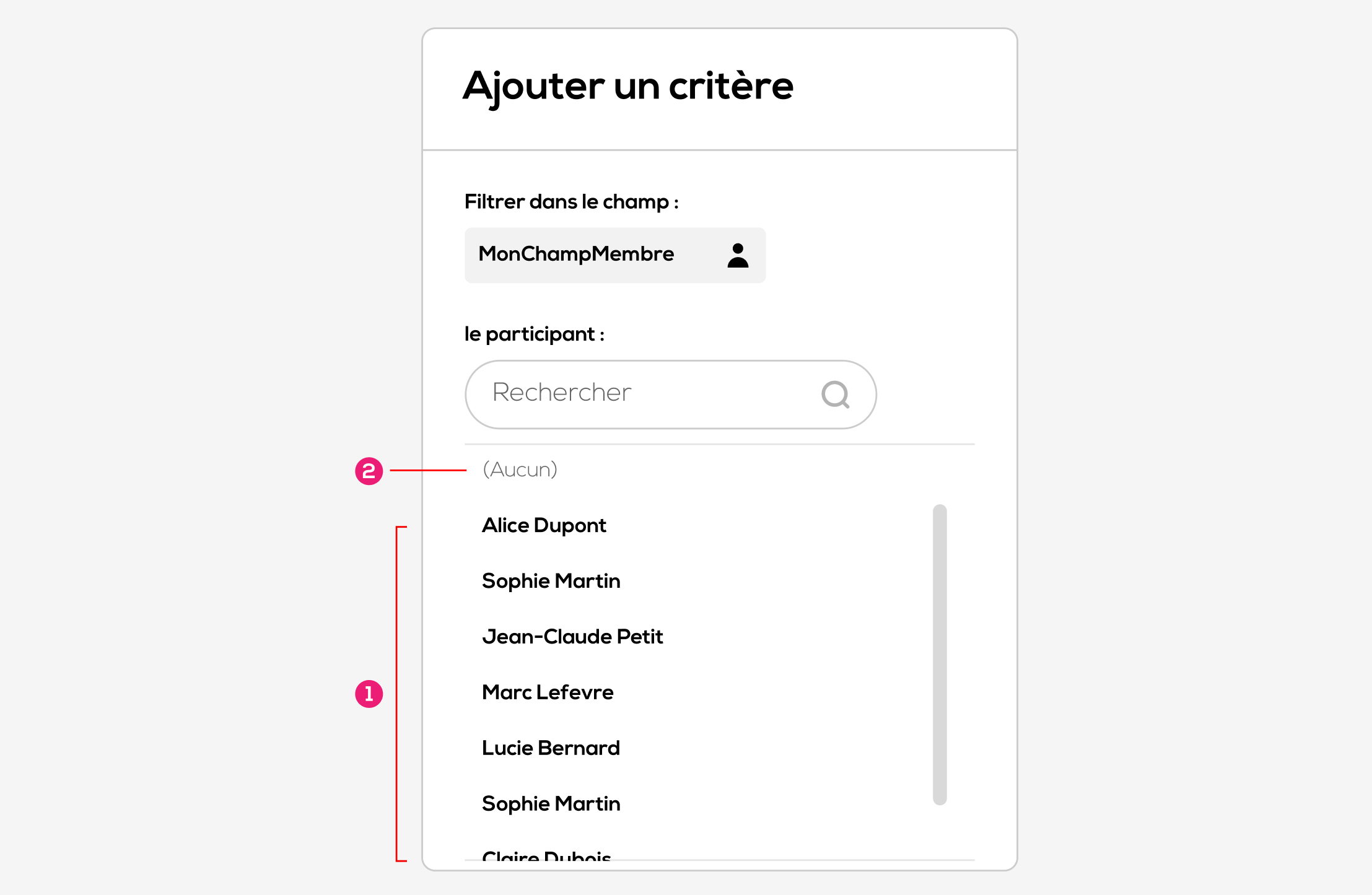
1 . Choose the target member from the list.
2 . Select “None” to filter post-its with a member not filled in.
- For a list field:
Filter post-its whose selected field result matches the target value.
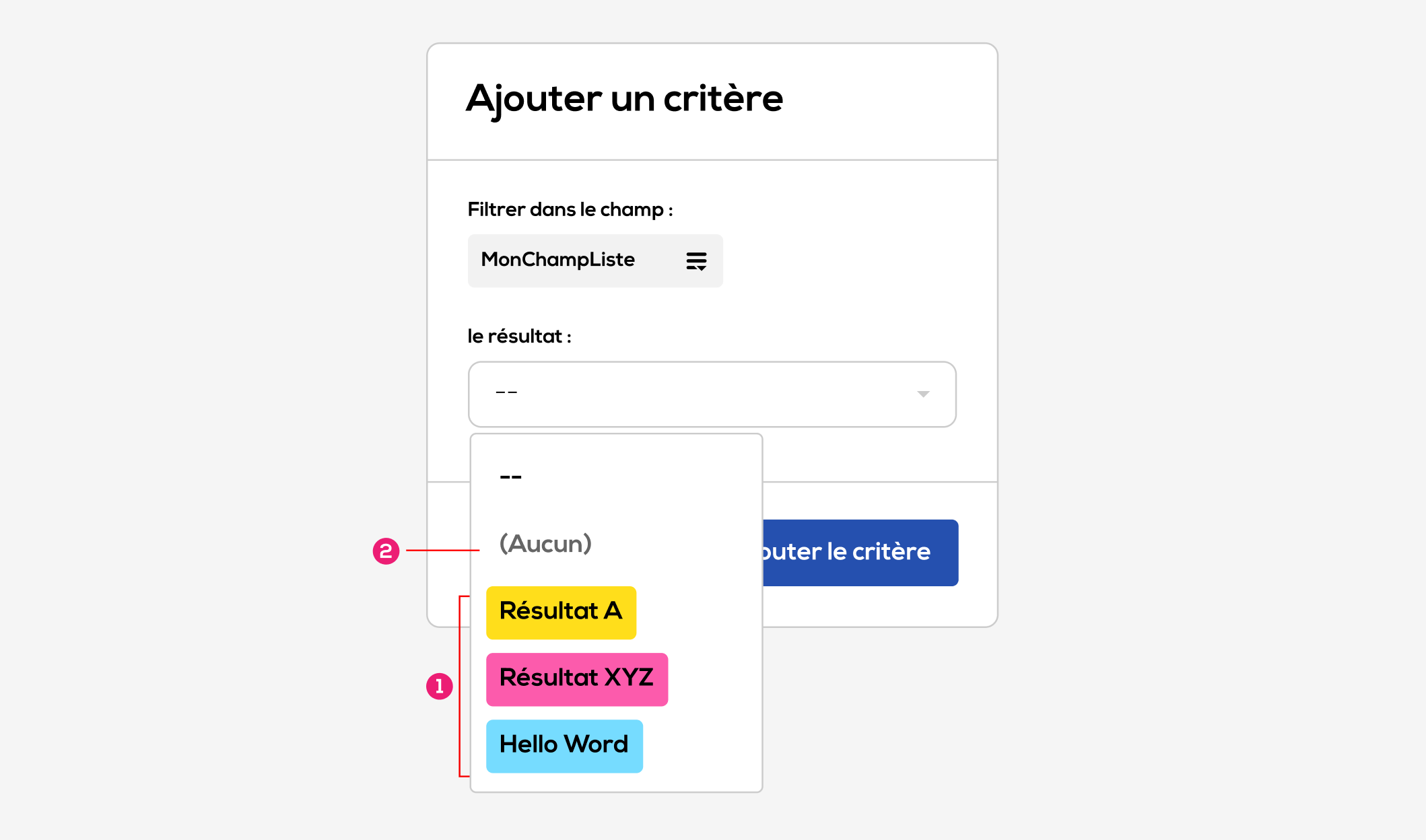
1 . Choose a target result from the list.
2 . Select “None” to filter post-its with a list not filled in.
- For a calculation field :
Filter post-its whose selected field value matches the target value.
Creating criteria for calculated fields will differ depending on the type of the calculated field (numeric, duration, date). See the cases above: duration type, date type, numerical type.
-
JIRA fields :
Filter post-its whose selected field value matches the target value.
The JIRA fields available on Ubikey JIRA cards are: Assignee, Due Date, Epic Name, Issue Type, Labels, Priority, Status.
The fields Assignee, Epic Name, Issue Type, Labels, Priority, Status are treated as text fields (see above). You will need to enter the exact target result in the field (exact spelling required).
The Due Date field is treated as a date field (see above).
For more information on Ubikey / JIRA integration: JIRA Integration.
-
Group :
Filter items that are present in the selected group(s).
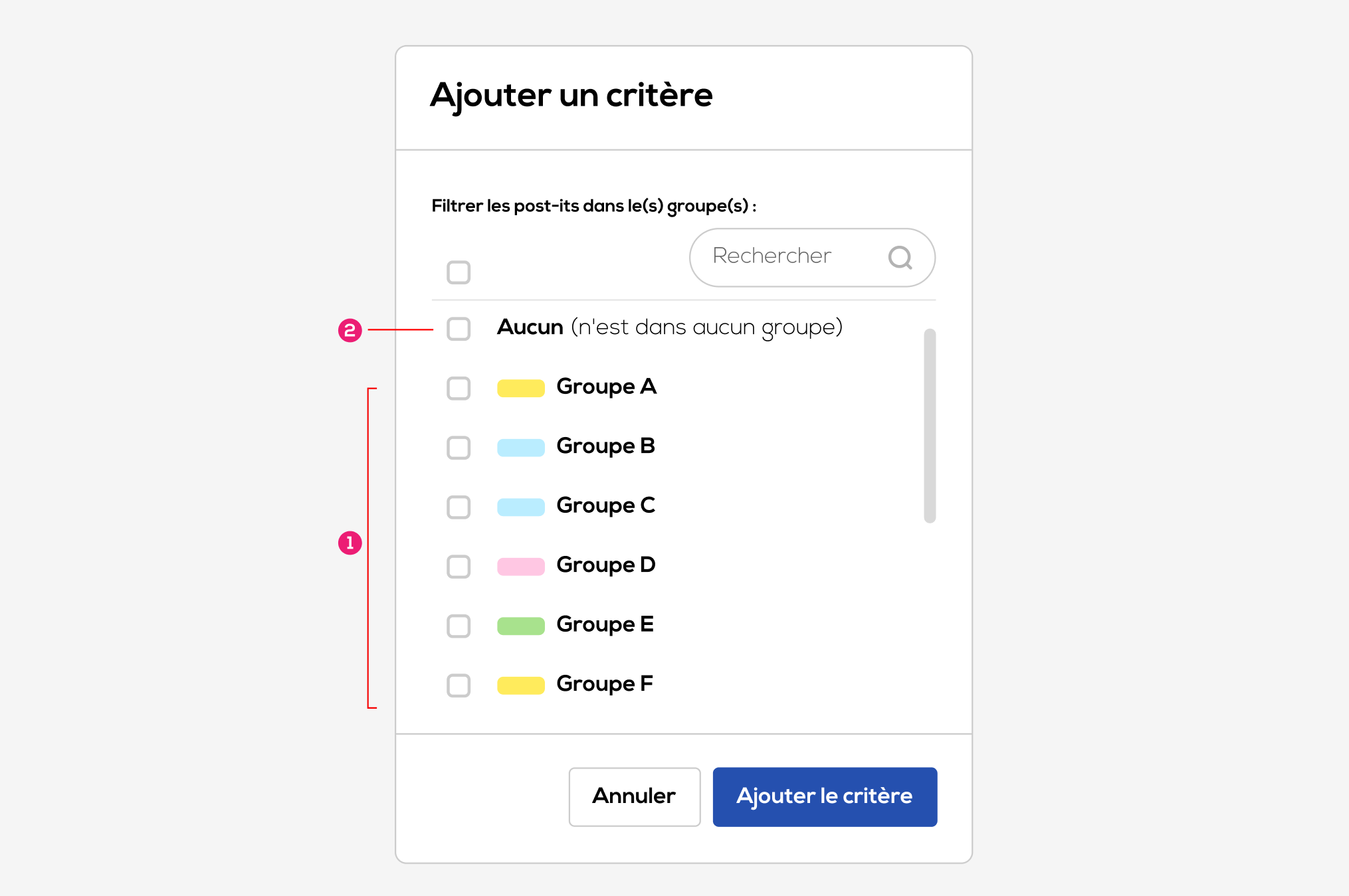
1 . Select the target group(s) from the list of groups in the document. If multiple groups are selected, the created criteria will be: belongs to group 1 or group 2, etc.
2 . Select “None” to filter items that are not in any group.
Filter composition:
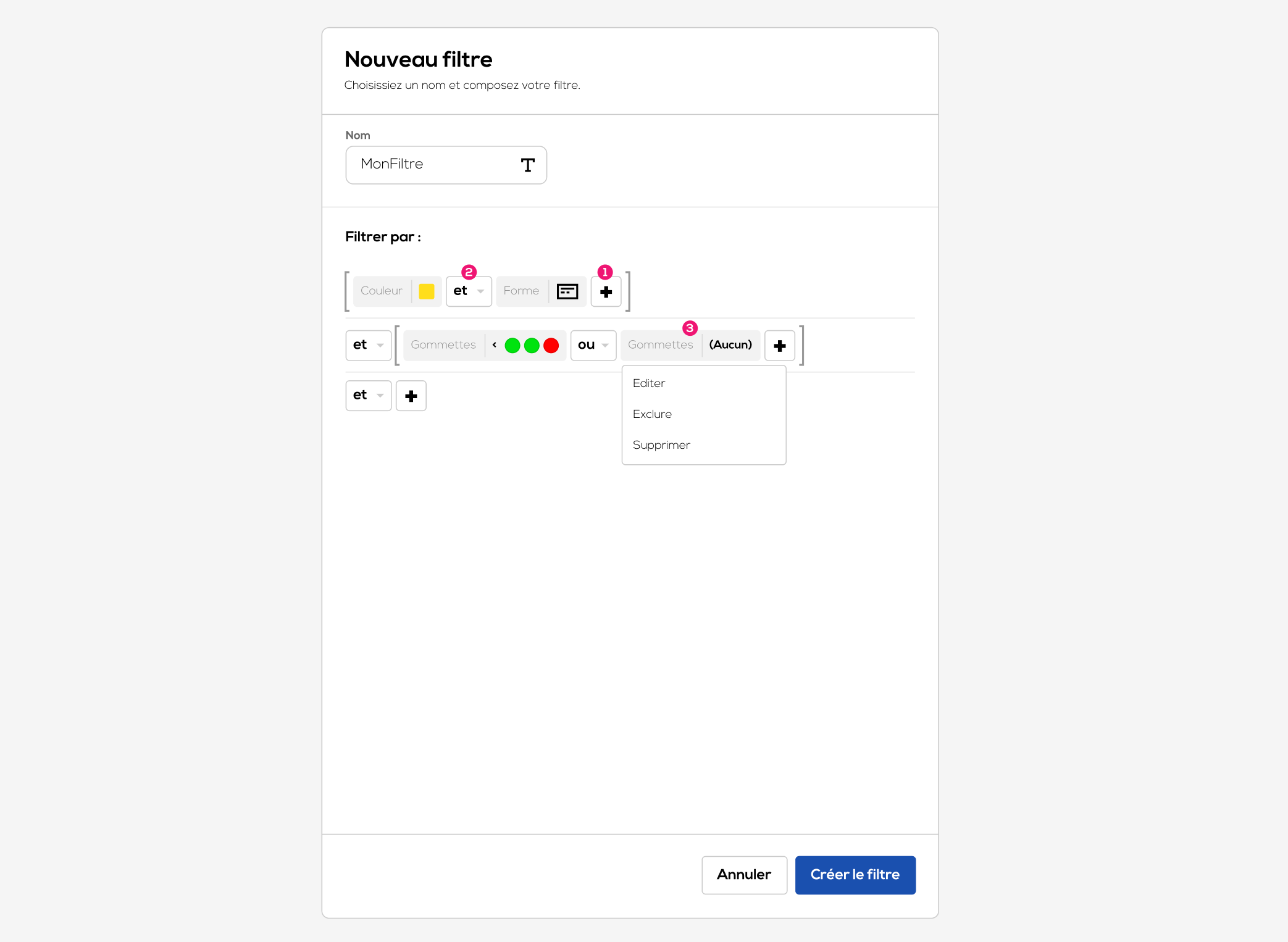
1 . Add a criteria.
2 . Choose an operator: and / or.
3 . Click on a criteria to: Edit the criteria, Exclude the criteria, or Delete the criteria.
Excluding a criteria reverses the returned items. For example, the criteria “square post-its” excluded returns all post-its that are not square. Parts of the filter in brackets take priority in the logical calculation order.
Click Create Filter.
Displaying filters in the tab menu :
Find your filter in the Statistics tab:
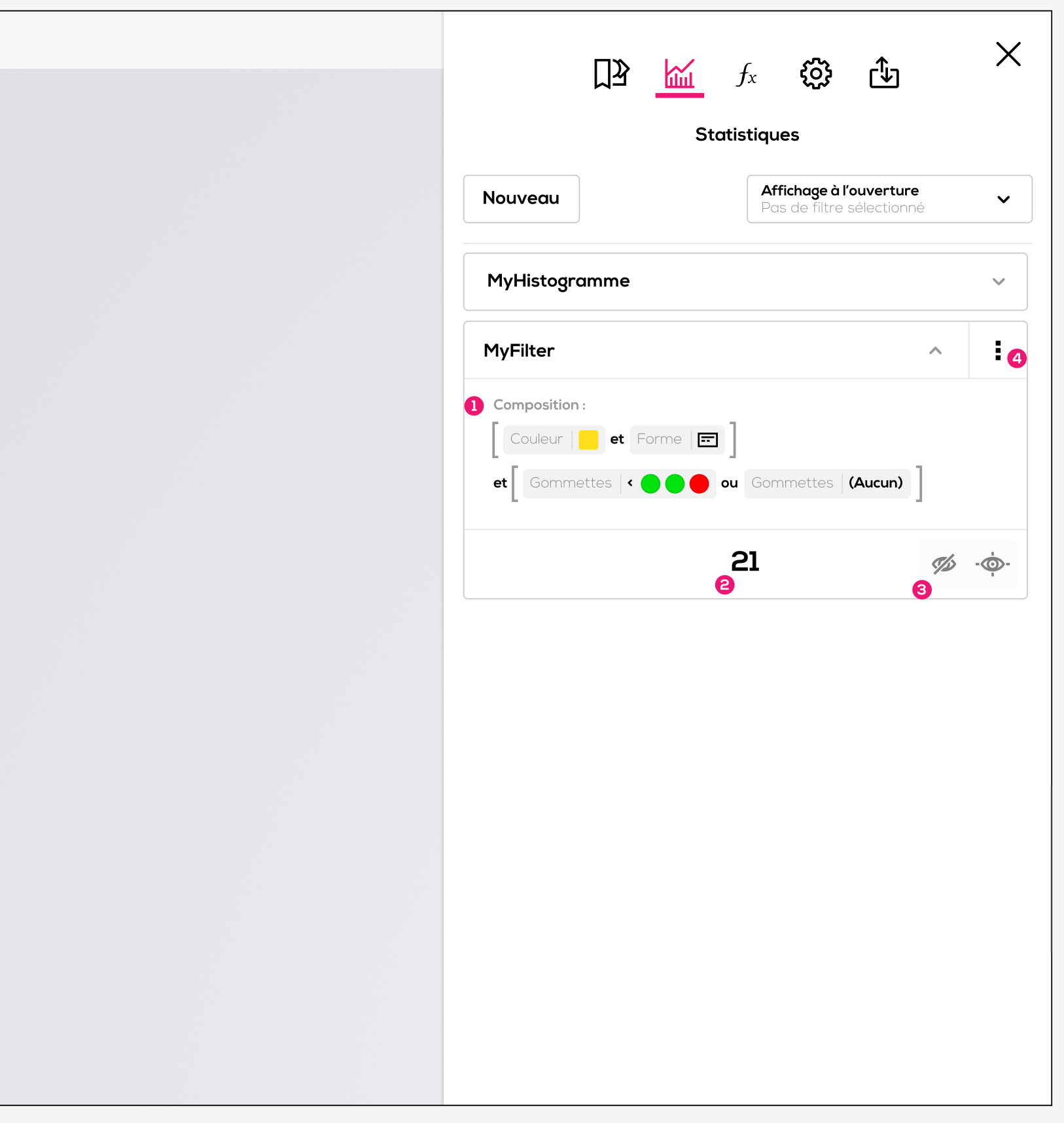
1 . Reminder of the filter composition.
2 . Filter result (number of items that meet the criteria).
3 . Hide or highlight the filter results.
4 . Click the menu icon to edit or delete the filter.
Displaying filters in the document:
Drag a measure from the Statistics tab onto your document.
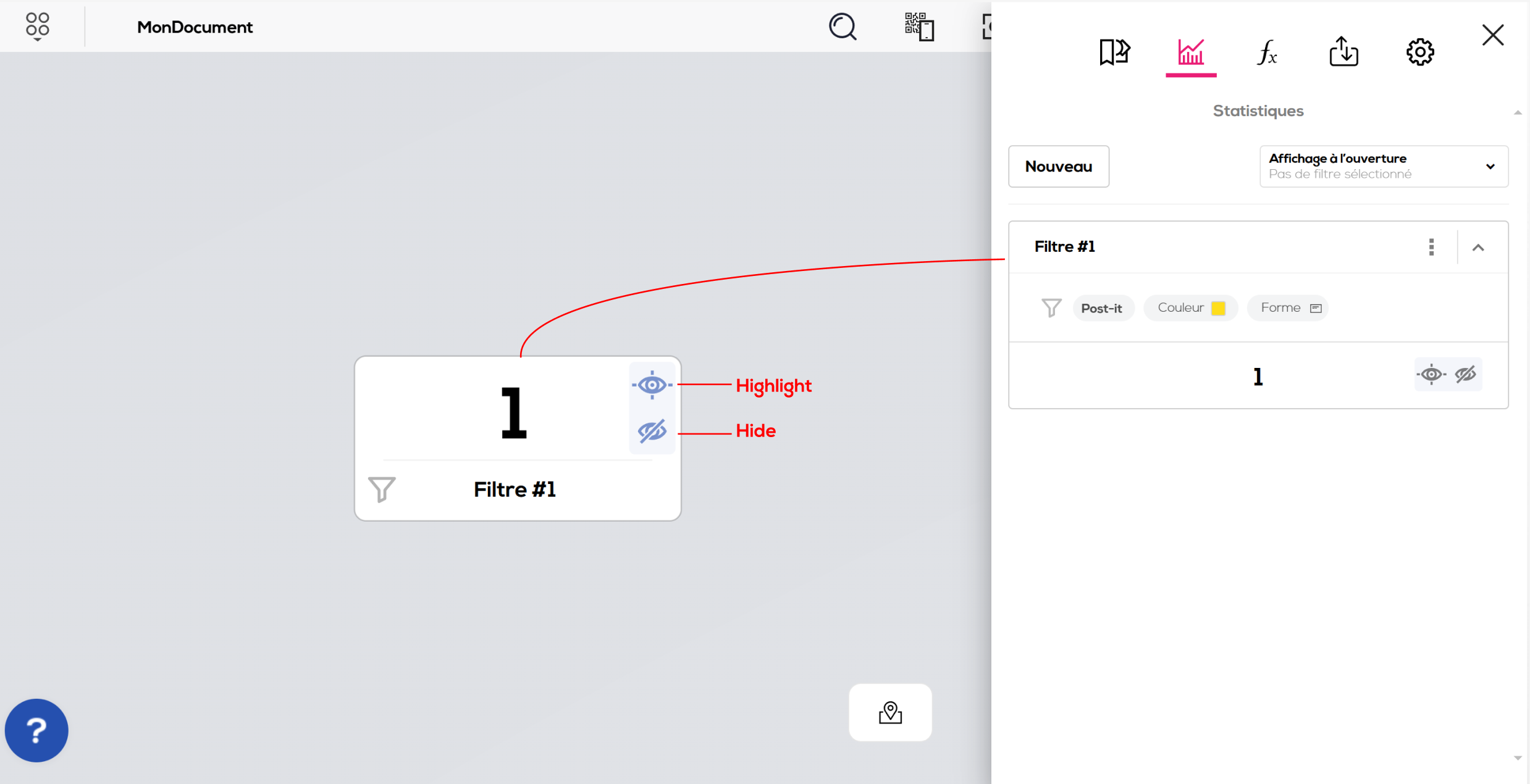
Directly from the item, you can hide or highlight the filter results.
The item created this way can be handled like any other object in the document.
The filter item is only compatible with the document in which it was created. If you send it to another document via a portal, it will display an error.
Related articles:
