Indicators views
An indicator view is a visual representation of one or more indicators within a document (see indicators). The availables views are : indicators table, safety cross, monthly calendar, chart and monthly circular calendar.
The monthly circular calendar view
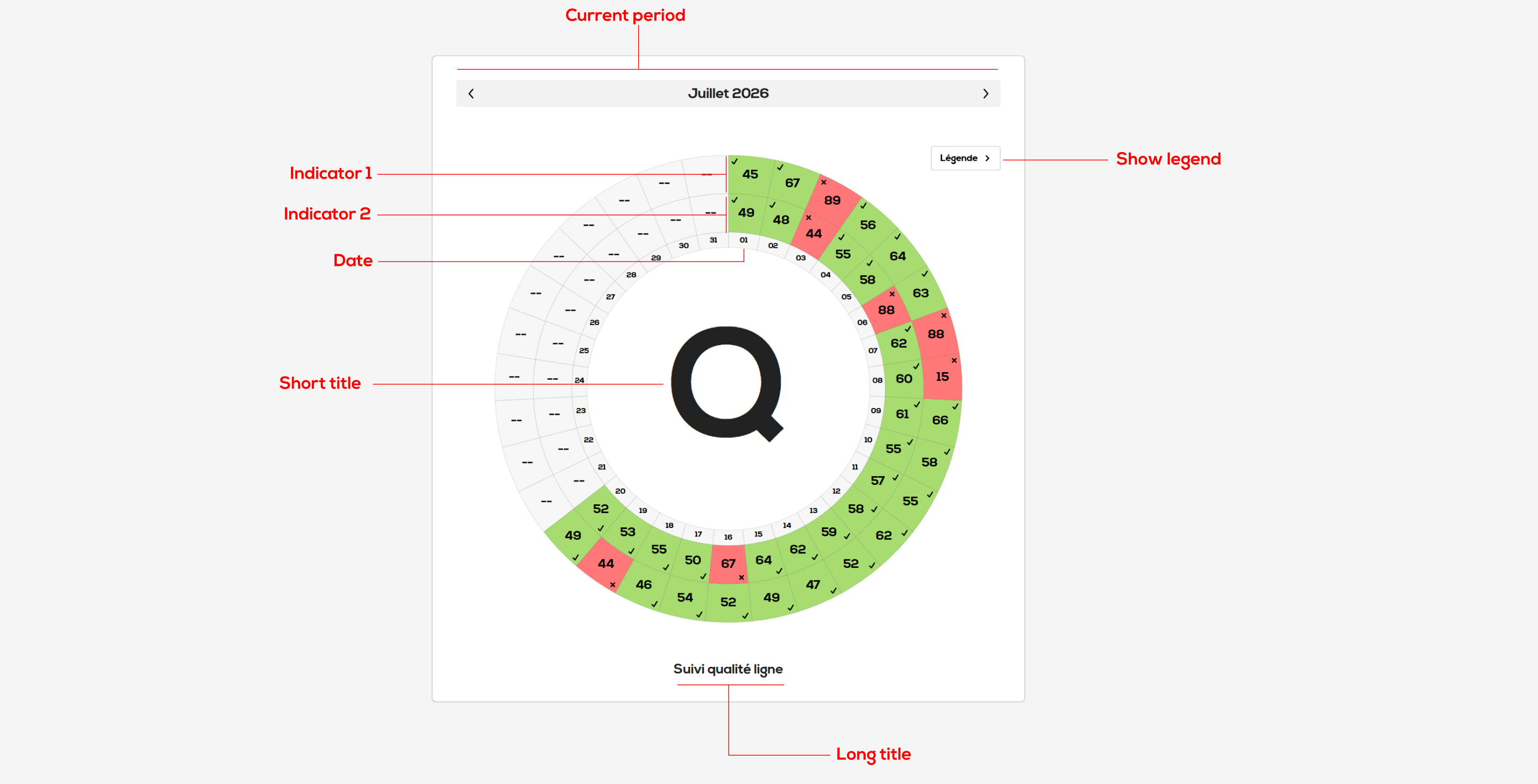
The circular monthly calendar view allows you to display daily indicators (calendar days and working days), including color-based indicators, numeric indicators (standard and percentage), as well as consolidated indicators.
You can display as many indicators as needed. An additional circle will be added for each extra indicator.
You can choose whether or not to display the legend based on your needs. The visible/hidden state of the legend will be saved.
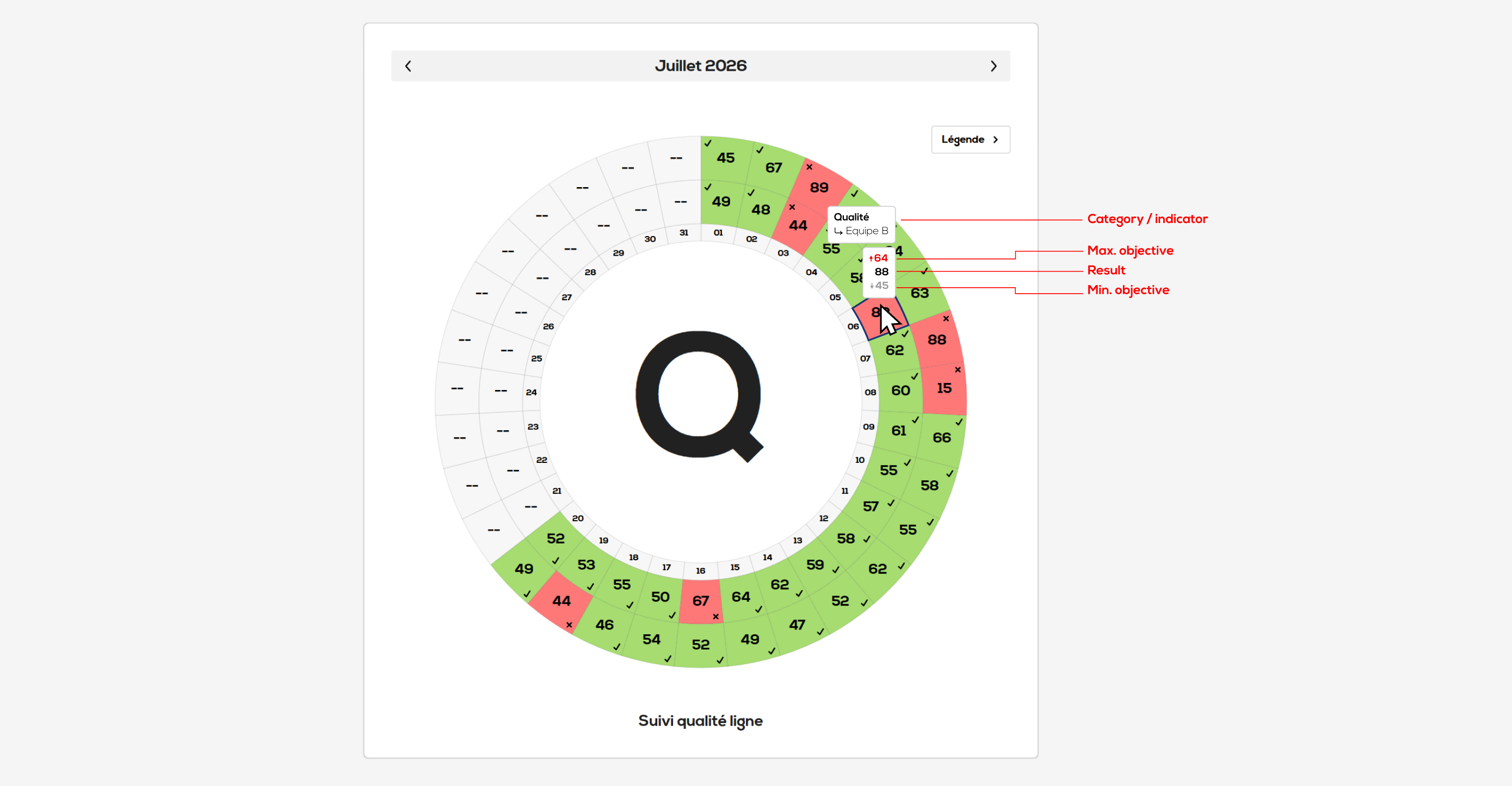
To view the detailed values for a specific date, hover your mouse over the corresponding cell.
Consolidated indicators
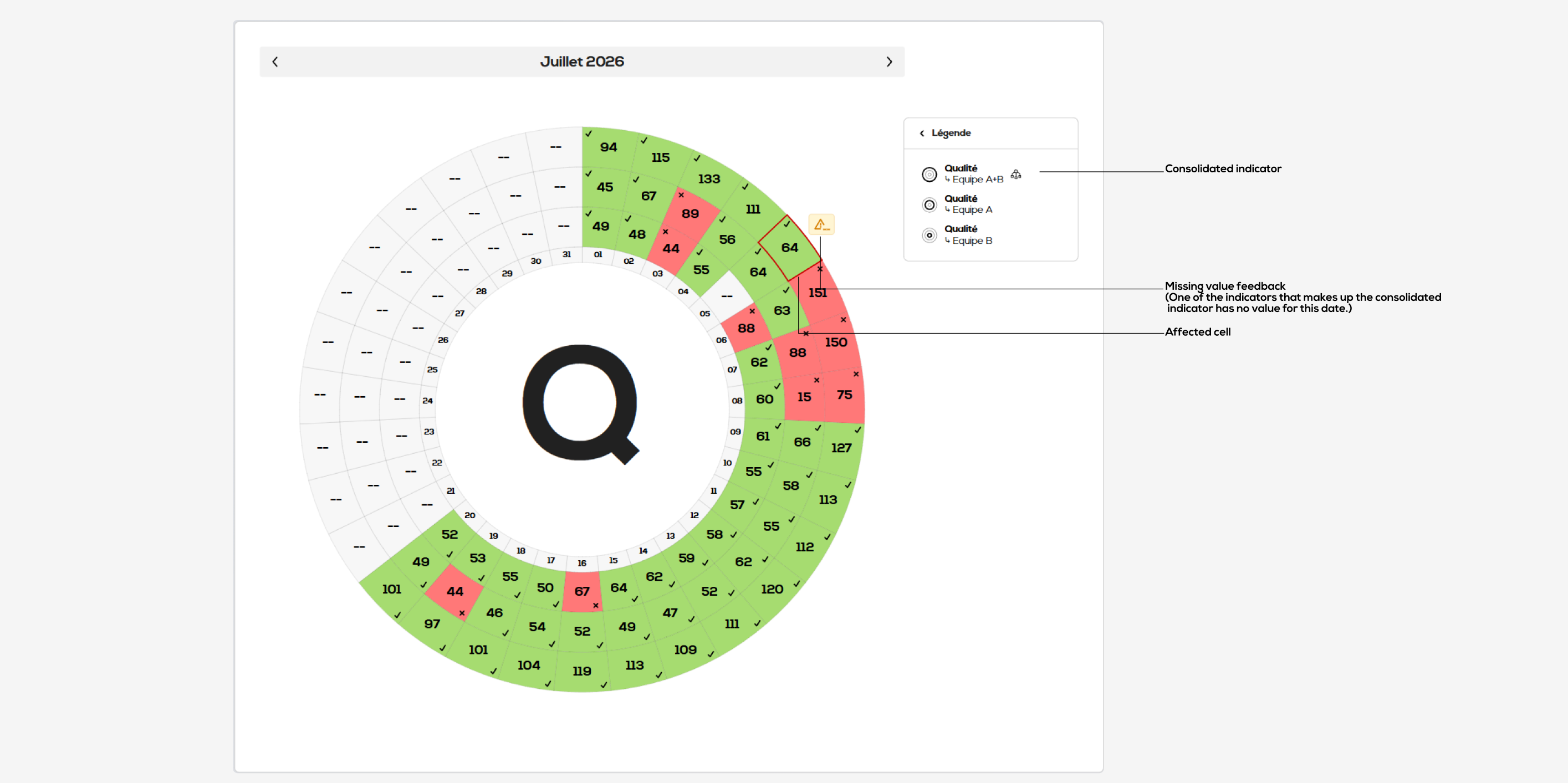
Learn more about consolidated indicators : Consolidated indicators
Create a Circular Monthly Calendar View
To create a circular monthly calendar view, right-click in the document where you want to add the view, then select "New Indicator View" and "Circular Monthly Calendar".
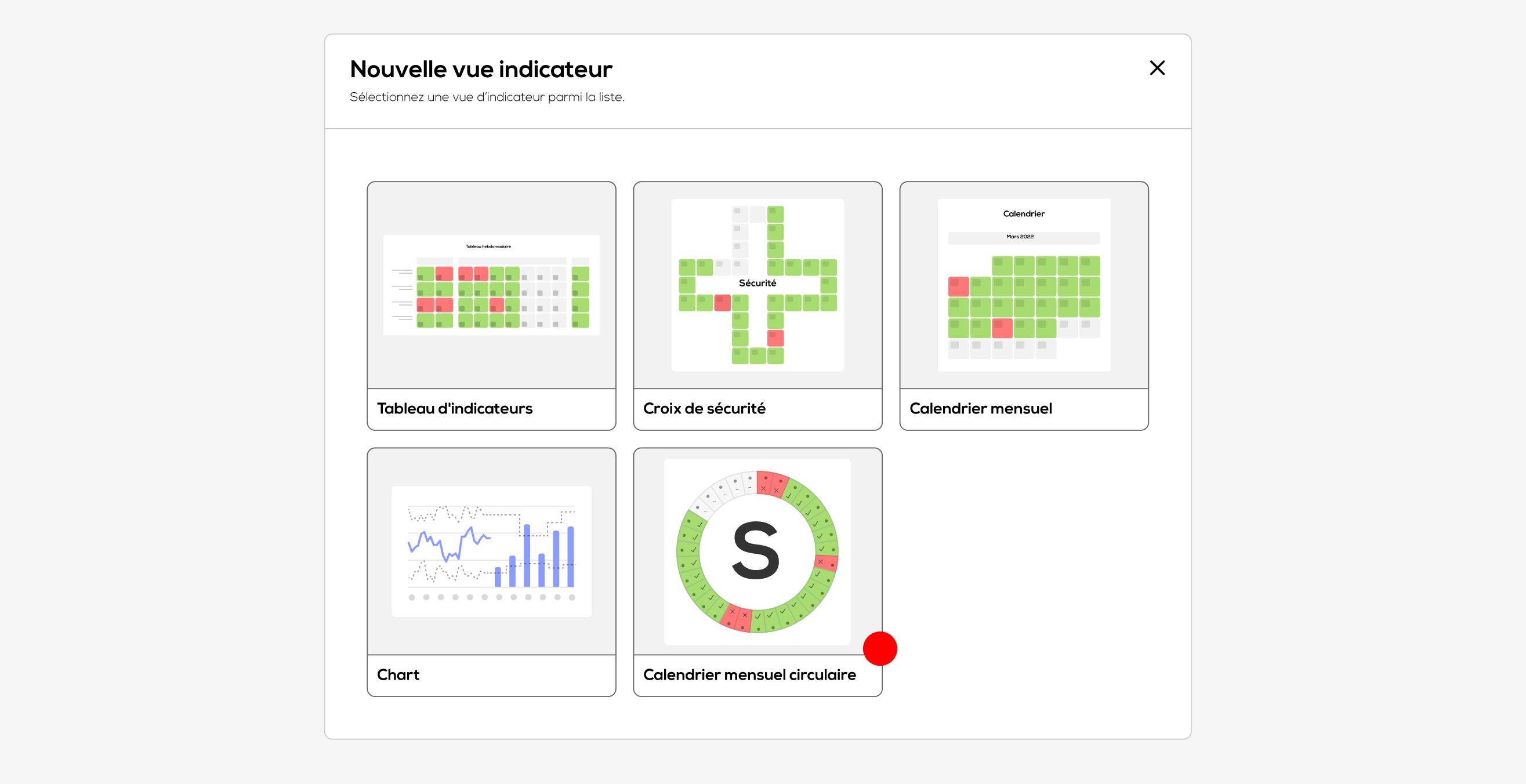
The configuration window opens.
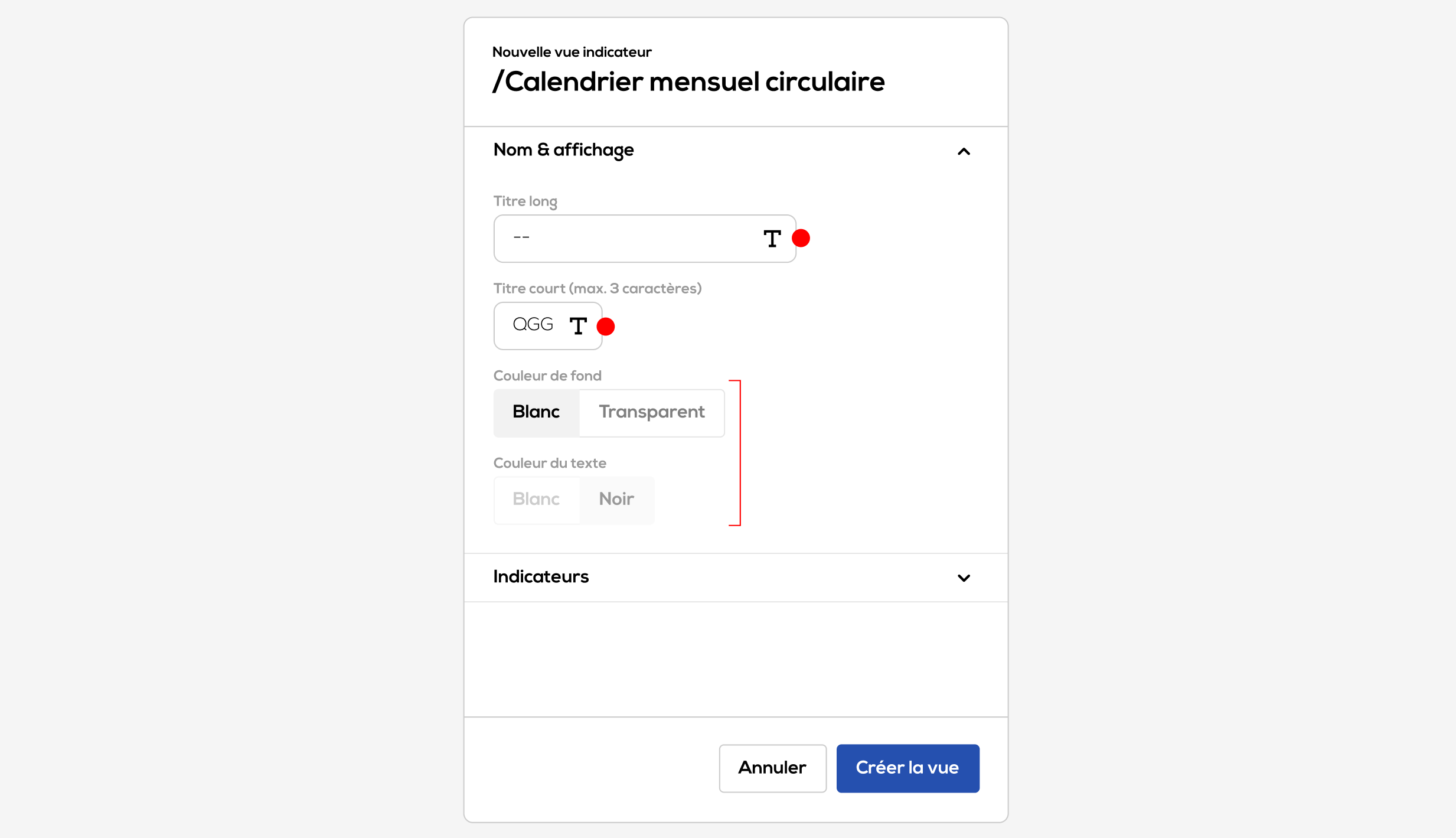
- Enter a long title. It will be displayed at the bottom of the view.
- Enter a short title. It will be displayed in large text at the center of the circle.
- Choose the view's display settings.
Then click "Indicators" to select the indicators that will be displayed in the view.
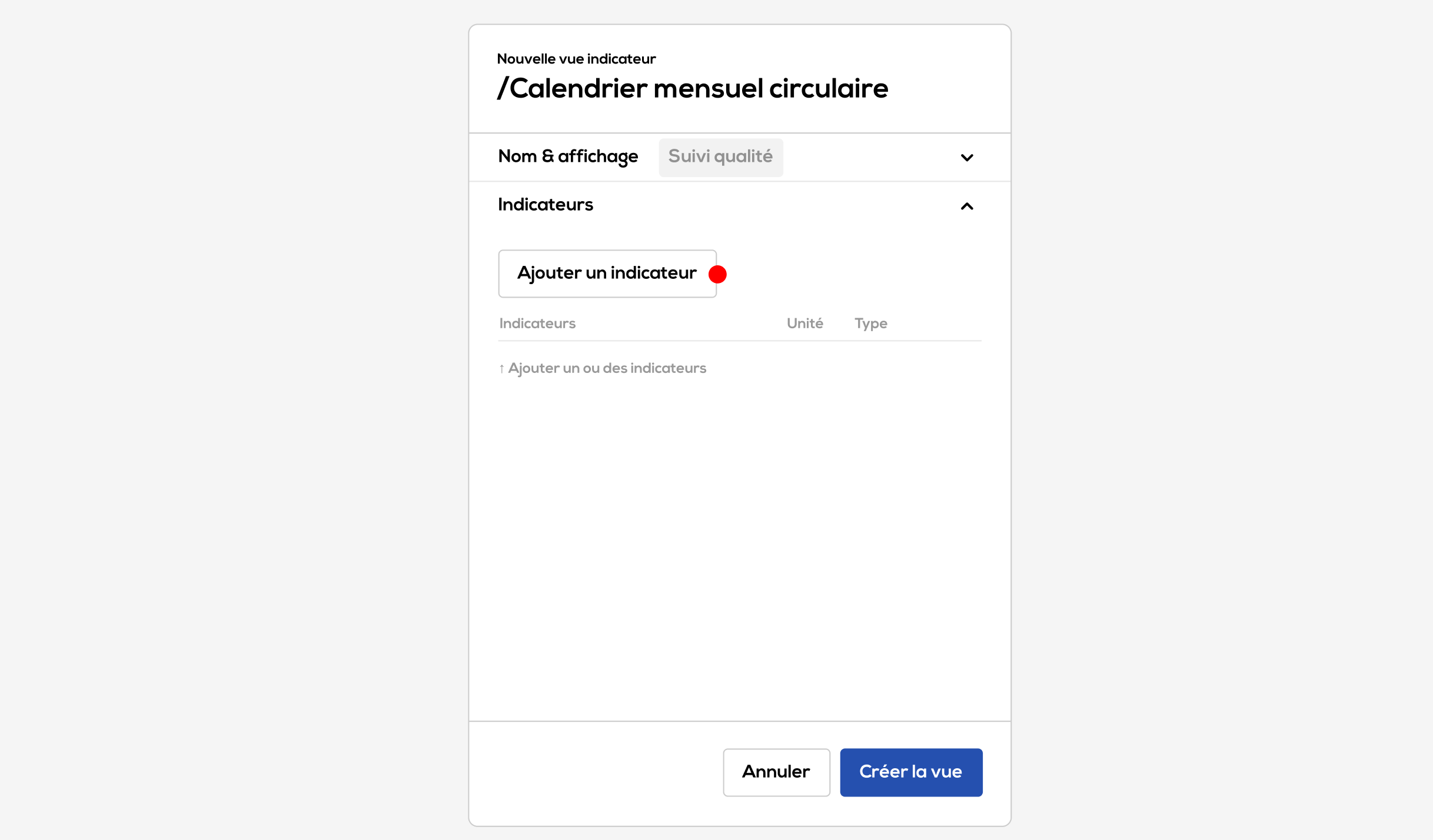
The list of selected indicators is currently empty. Click "Add Indicator".
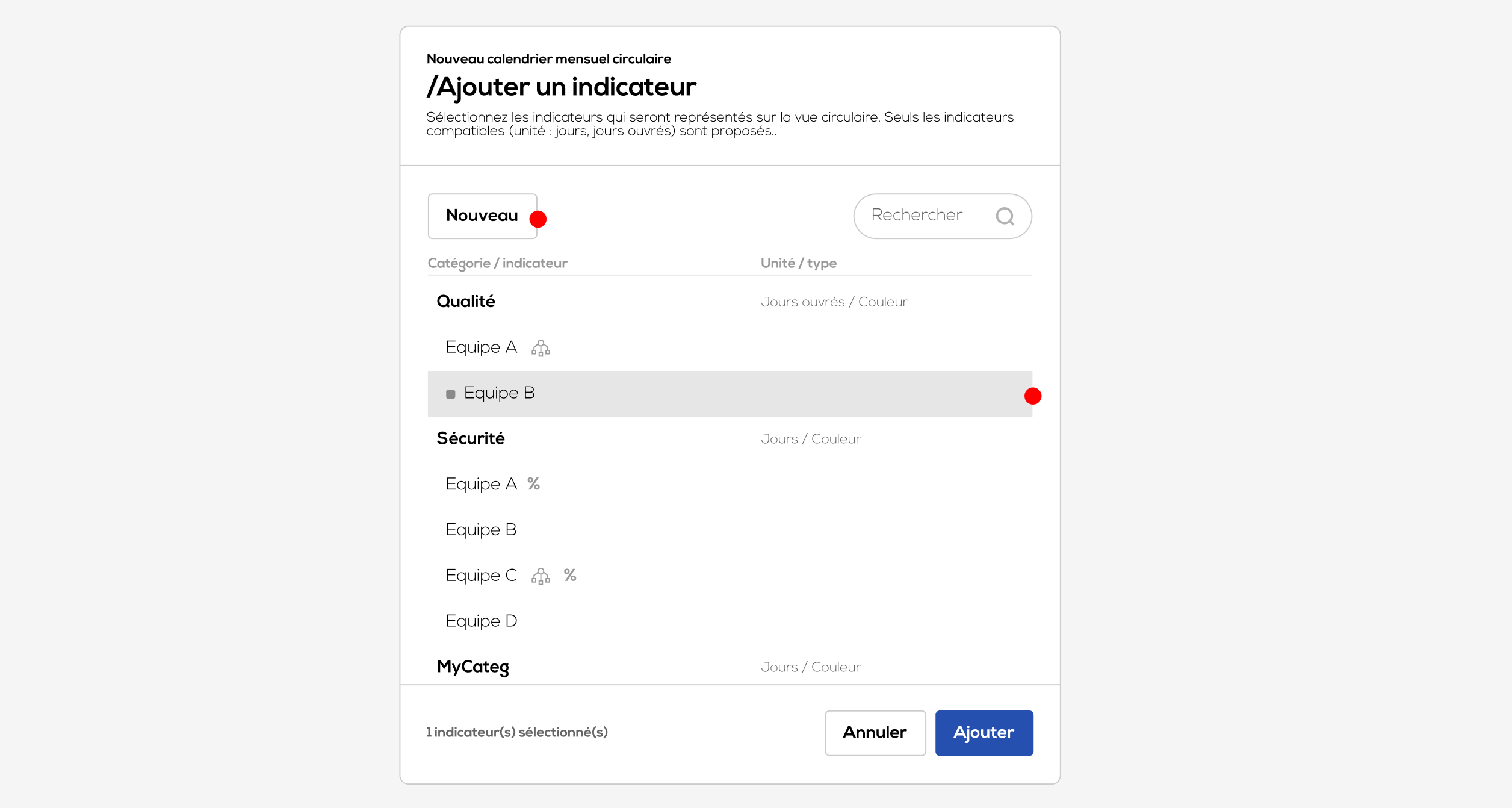
The indicator selection window is displayed.
Click one or more indicators in the list to add them to the view.
Click "New" to create a new indicator and add it to the view (see: Indicators).
Once you have selected your indicators, click "Add".
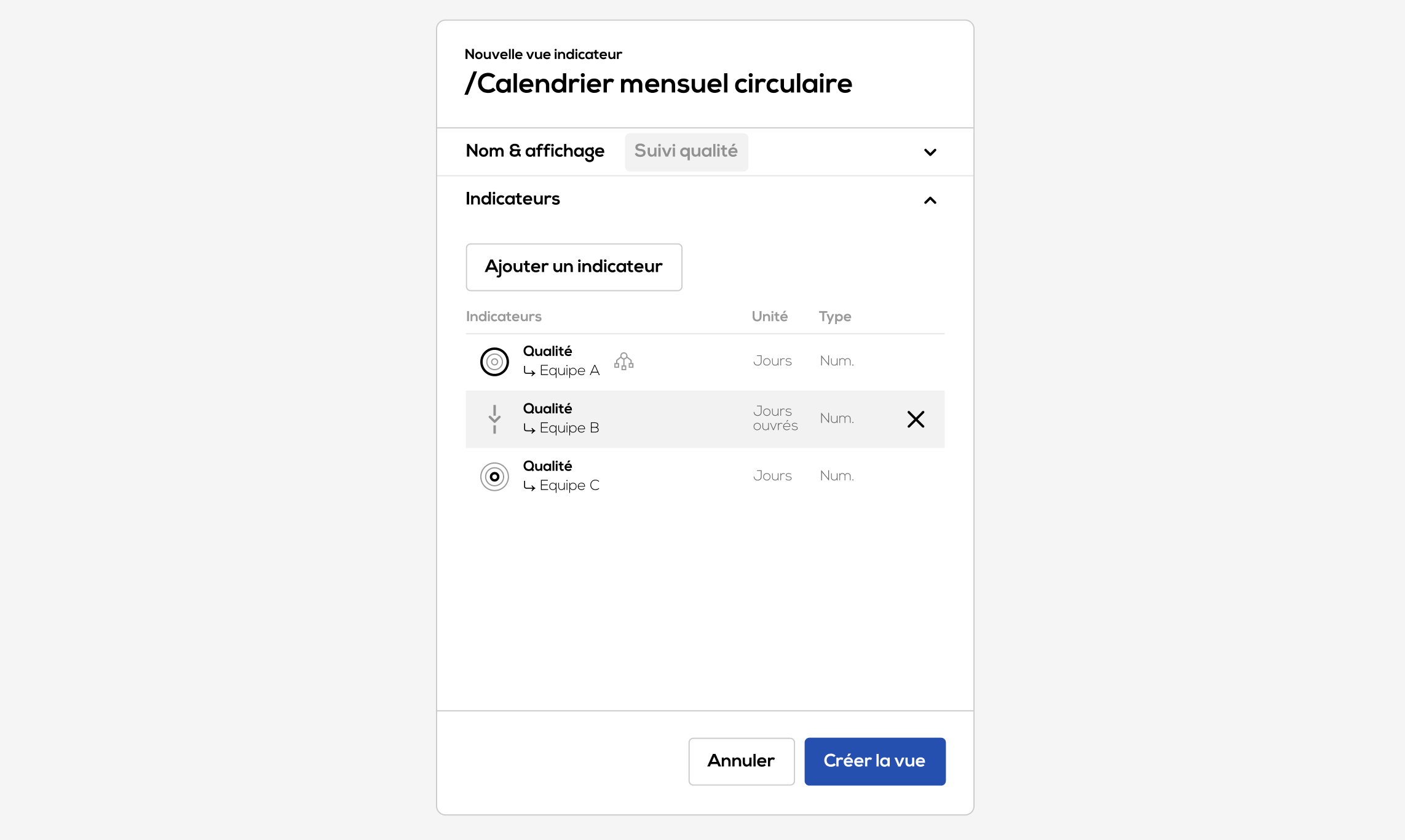
The list of indicators for the view is now populated. You can remove an indicator or reorder the list (the display order of the circles will be updated).
Click "Create View".
Edit values from the Circular Monthly Calendar
To edit the value of an indicator for a specific day, click the corresponding cell.
For a numeric indicator, the value editing window opens:
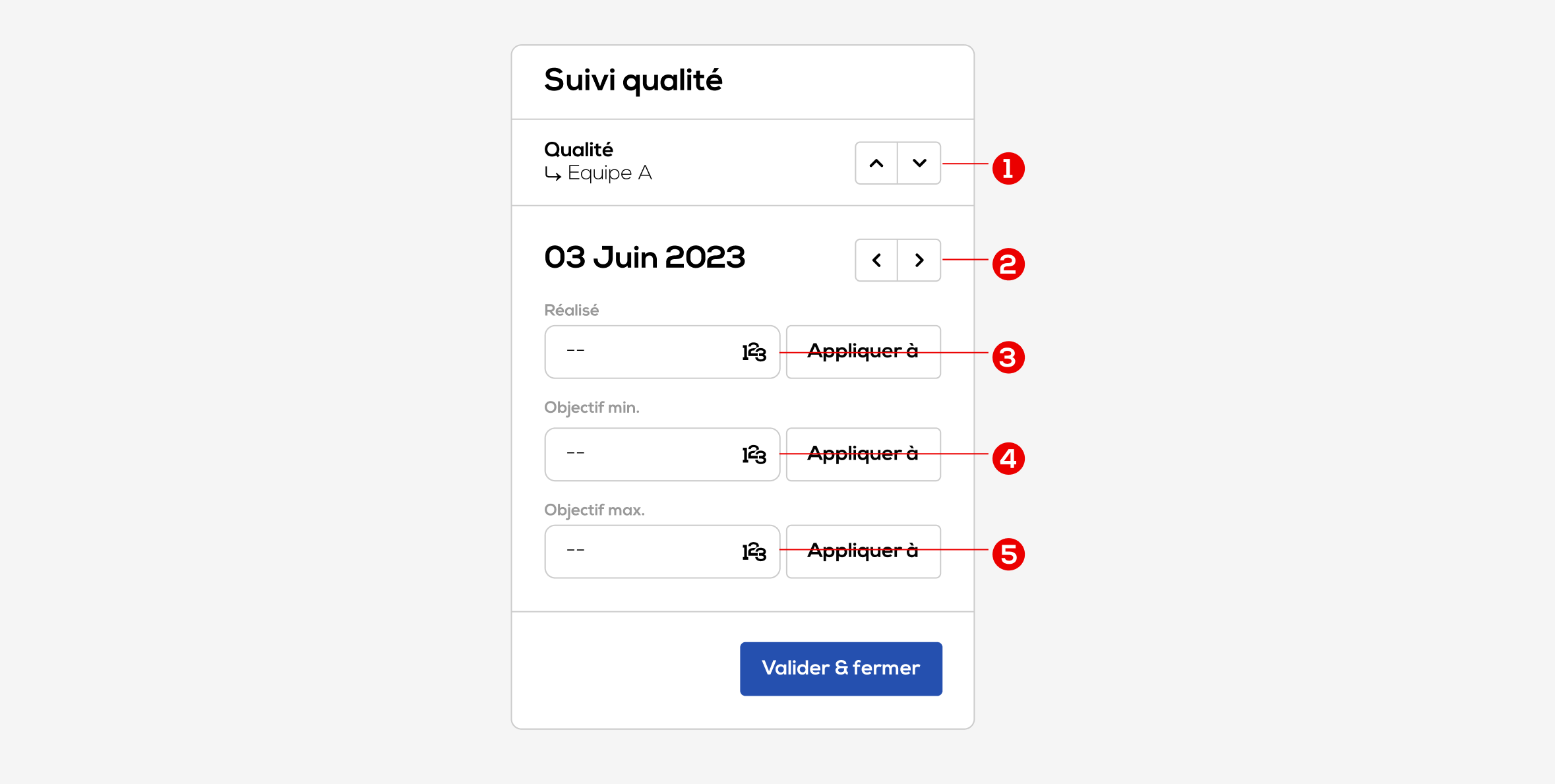
1 . Use the arrow buttons next to the date to change the date or use the shortcuts [Shift + →] or [Shift + ←].
2 . Use the arrow buttons next to the selected indicator to change indicator or use the shortcuts [Shift + ↑] ou [Shift + ↓].
3 . Realized value
4 . Min objective value
5. Max objective value
"Apply to" button enable you to apply the corresponding objective value to a period of time.

Note : fields are automatically filled with a one year period starting from the selected date.
Note : if objectives values are already filled within the selected period, they will be overwritten.
